USB4 vs USB 3.2 Flash Drives: Speeds Compared
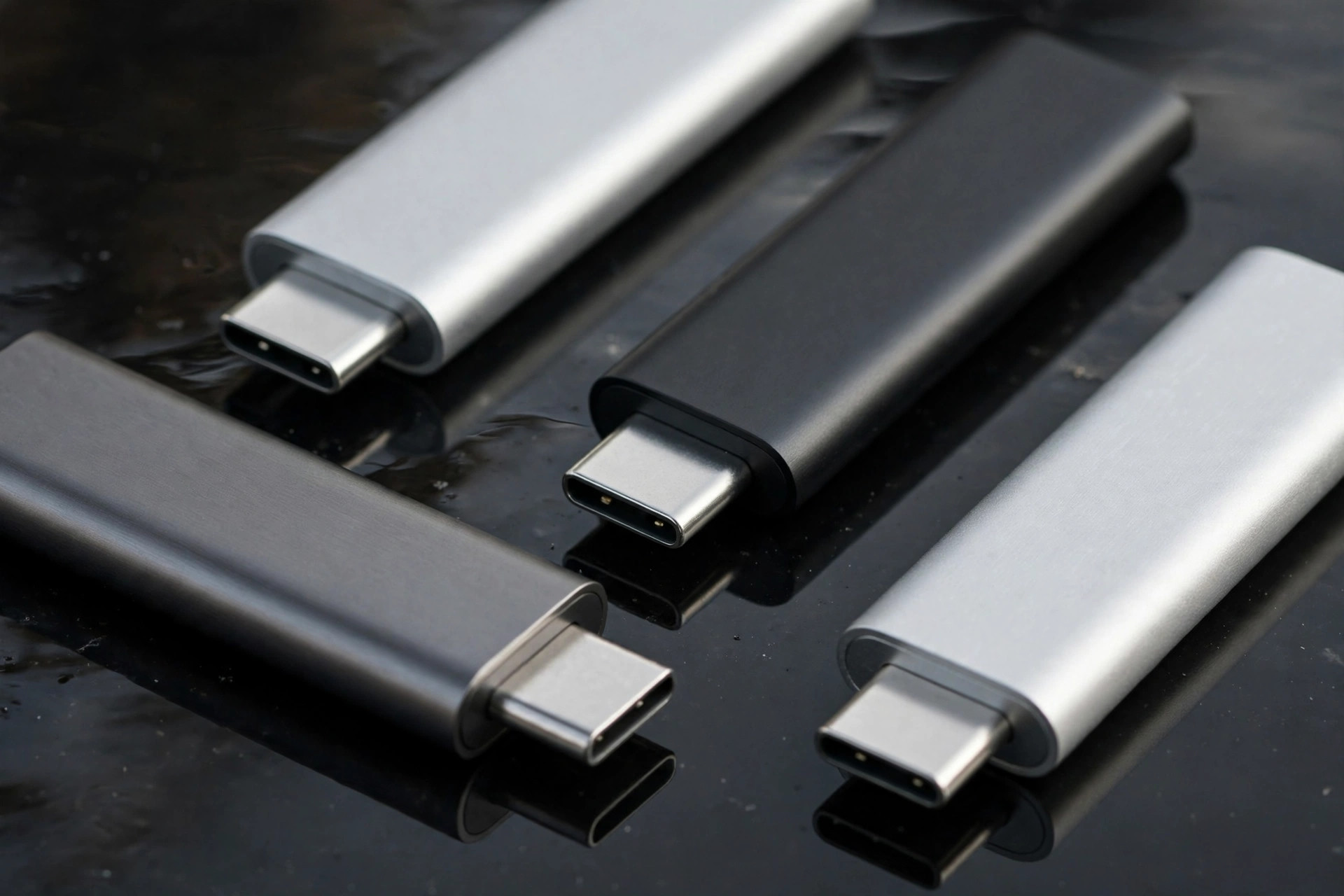
Flash drives grew up. The stick you once used for PowerPoint files now comes in USB4 flavors promising 3,000 MB/s — faster than the internal SSD of many laptops. But the USB4 vs USB 3.2 flash drive decision is not as simple as "bigger number wins." Real-world speeds, heat, port compatibility, and a brutal price gap make this one of the trickiest buying decisions in portable storage.
This comparison measures both standards by what they actually deliver in a flash-drive form factor, not what the logo on the box implies.
The USB naming mess, briefly decoded
USB naming is a decade-long comedy of errors. What matters for buyers: USB 3.2 Gen 1 means 5 Gbps (about 500 MB/s real), USB 3.2 Gen 2 means 10 Gbps (about 1,000 MB/s real), USB 3.2 Gen 2x2 means 20 Gbps (about 2,000 MB/s real, Windows only), and USB4 means 40 Gbps — with real flash-drive speeds landing between 2,500 and 3,800 MB/s depending on the controller and thermals.
The critical detail: the USB-C connector tells you nothing about the standard. A USB-C port might be USB 2.0, USB4, or Thunderbolt 4. A USB4 flash drive plugged into a 10 Gbps port runs at 10 Gbps speeds — the drive downgrades gracefully, but you paid for bandwidth you cannot use.
Theoretical vs. real-world speeds
Every USB generation loses roughly 20–30% of its headline number to protocol overhead, and flash drives lose more to heat. Here is what each tier actually delivers in sustained file copies, the metric that matters:
| Standard | Headline speed | Real sustained read | Real sustained write | Typical price (256GB) |
|---|---|---|---|---|
| USB 3.2 Gen 1 | 5 Gbps | 400–450 MB/s | 200–400 MB/s | $20–35 |
| USB 3.2 Gen 2 | 10 Gbps | 900–1,050 MB/s | 800–1,000 MB/s | $40–70 |
| USB 3.2 Gen 2x2 | 20 Gbps | 1,800–2,000 MB/s | 1,500–1,800 MB/s | $90–140 |
| USB4 | 40 Gbps | 3,000–3,800 MB/s | 2,500–3,400 MB/s | $150–250 |
The jump from Gen 2 to USB4 looks like 4x on paper and measures roughly 3x in practice — impressive, until you notice the price jumps 3–4x too. Our USB4 portable SSD guide covers the larger SSD-shaped side of this market, where the economics are somewhat kinder.
How USB4 actually works: tunneling, not just bigger pipes
USB4 is not simply a faster USB 3.2 — it is a different architecture built on the Thunderbolt 3 protocol, which Intel contributed to the USB standards body. Instead of one data pipe, USB4 tunnels multiple protocols — USB 3.x data, DisplayPort video, and PCIe — over the same physical link, allocating bandwidth dynamically between them. For a flash drive only the USB data tunnel matters, but the architecture's overhead is part of why real speeds sit well below the 40 Gbps headline.
Encoding efficiency also differs by generation. USB 3.2 Gen 1 uses 8b/10b encoding, wasting 20% of its bandwidth on overhead before a single file byte moves; Gen 2 and Gen 2x2 use 128b/132b encoding at roughly 3% overhead, and USB4 uses 128b/132b as well. This is a hidden reason the Gen 1 to Gen 2 jump feels bigger than 5-to-10 suggests — Gen 2 wastes far less of its headline speed.
Thunderbolt 3 and 40 Gbps USB4 are protocol-compatible for data, so a USB4 flash drive runs at full speed in a Thunderbolt 3 or 4 port. The reverse is not always true — Thunderbolt-only accessories can refuse USB4 ports lacking Thunderbolt certification — but flash drives speak plain USB protocol, so the distinction never bites them.
One thing not to wait for: USB4 Version 2.0 (80 Gbps). It uses a new PAM-3 signaling scheme and new cables, first products targeted high-end docks and displays, and as of 2026 there are essentially no 80 Gbps flash-drive controllers on the market. A USB4 stick bought today will not be obsoleted by v2 — USB's backward compatibility is near-absolute — so waiting buys you nothing in the stick segment.
Heat: the enemy of tiny fast drives
A USB4 controller pushing 3,500 MB/s in a thumb-sized enclosure generates serious heat with nowhere to go. Nearly every USB4 flash drive thermal-throttles during sustained writes — the first 30–60GB fly, then speeds sag as the drive protects itself. Metal housings help; plastic ones turn into hand warmers.
This matters more than the spec sheet admits. Copying a 200GB video project to a USB4 stick, you may average 1,500 MB/s across the whole transfer — barely ahead of a good Gen 2x2 drive that holds its speed. For bursty work (a few gigabytes at a time), USB4 dominates. For sustained bulk copies, the gap narrows dramatically.
Reviewers measure this with sustained-write tests: filling the entire drive sequentially while logging speed every few seconds. The resulting curve tells the real story — a flat line at 1,000 MB/s beats a curve that starts at 3,500 and ends at 900. When comparing drives, look for these sustained charts rather than the single peak number on the box. Peak numbers are measured in the first ten seconds; your files live in the minutes after.
USB 3.2 Gen 2 drives, by contrast, barely break a sweat. Their controllers are mature, their thermals are solved problems, and a quality Gen 2 stick holds 1,000 MB/s from the first gigabyte to the last. Reliability engineers will tell you the cooler drive is the drive that lasts.
Real measured speeds across different hosts
The same flash drive does not perform the same in every computer. The host controller — the chip driving your USB ports — varies enormously in quality. A USB4 stick that measures 3,600 MB/s on a MacBook Pro can measure 2,400 MB/s on a budget Windows laptop, and drop to 950 MB/s on a machine whose fastest port is 10 Gbps.
Power delivery plays a subtler role: some thin laptops cap port current, and the controller clocks down under the limit. Filesystem choice shaves another 5–15% — exFAT is measurably slower than NTFS or APFS — and background antivirus scanning can halve a benchmark while it runs.
| Host | Port | Gen 2 stick measured | USB4 stick measured |
|---|---|---|---|
| MacBook Pro (M-series) | Thunderbolt 4 / USB4 | ~1,000 MB/s | ~3,600 MB/s |
| Windows desktop, native USB4 | USB4 (rear I/O) | ~1,000 MB/s | ~3,200 MB/s |
| Windows laptop | USB-C 10 Gbps | ~1,000 MB/s | ~950 MB/s (port-limited) |
| Budget laptop | USB-C 5 Gbps | ~430 MB/s | ~430 MB/s (port-limited) |
| Desktop front panel | Via internal header | ~900 MB/s | ~900 MB/s (header-limited) |
| Android phone / tablet | USB-C 3.2 | ~900 MB/s | ~900 MB/s (port-limited) |
The practical lesson: benchmark on your machine before judging a drive, and test the rear motherboard ports before the front panel. If a USB4 stick benches at Gen 2 speeds, the port — not the stick — is almost always the explanation.
Port compatibility: the hidden tax
USB4 flash drives require USB4 or Thunderbolt 3/4 ports for full speed. Most desktop PCs still ship with 10 Gbps USB-C ports; many budget laptops top out at 5 Gbps. Before buying USB4, check your ports — on Windows, Device Manager lists the USB controllers; on Mac, System Information shows the bus speed.
There is also the Apple wrinkle: Macs never supported USB 3.2 Gen 2x2, so those drives fall back to 10 Gbps on Apple silicon. USB4, however, works at full speed on M-series Macs with Thunderbolt/USB4 ports, making USB4 the only path past 1,000 MB/s for Mac users.
On Windows desktops, the situation is murkier than it should be. A motherboard may advertise USB-C 20 Gbps on one port and 5 Gbps on the next, with no labeling to distinguish them — check the manual's port map. Front-panel ports wired through cheap internal headers sometimes negotiate below their rated speed. When in doubt, test with a known-fast drive and a benchmarking tool before concluding the flash drive is at fault.
Host-port compatibility matrix
Every drive standard negotiates down to the fastest speed both ends support. Find your computer's best port across the top, the drive you are considering down the left, and read the speed you will actually get.
| Drive ↓ / Port → | USB 5 Gbps | USB 10 Gbps | USB 20 Gbps (Gen 2x2) | USB4 / Thunderbolt | USB4 v2 (80 Gbps) |
|---|---|---|---|---|---|
| USB 3.2 Gen 1 stick | ~450 MB/s | ~450 MB/s | ~450 MB/s | ~450 MB/s | ~450 MB/s |
| USB 3.2 Gen 2 stick | ~450 MB/s | ~1,000 MB/s | ~1,000 MB/s | ~1,000 MB/s | ~1,000 MB/s |
| USB 3.2 Gen 2x2 stick | ~450 MB/s | ~1,000 MB/s | ~2,000 MB/s (Win) | ~1,000 MB/s (Mac) | ~1,000 MB/s |
| USB4 stick | ~450 MB/s | ~1,000 MB/s | ~2,000 / ~1,000 MB/s* | ~3,000–3,800 MB/s | ~3,000–3,800 MB/s |
*On a 20 Gbps port a USB4 stick falls back to USB 3.2 signaling: ~2,000 MB/s on Windows via Gen 2x2 fallback, ~1,000 MB/s on Macs which lack Gen 2x2. The rule of thumb survives contact with every edge case: you always get the slower of the two ends, and paying for a faster drive than your fastest port is paying for nothing.
Price per gigabyte: the 2026 reality
Flash prices in 2026 punish the bleeding edge. A 512GB USB4 flash drive costs roughly what a 2TB Gen 2 drive costs. For most buyers, the smarter money is a larger Gen 2 drive: more room for the same money, no thermal drama, universal compatibility. Speed you cannot use is just expensive decoration.
The exception is the working-drive use case: video editors, photographers, and developers who run projects directly from the stick. If the drive is your scratch disk, USB4's speed pays for itself in saved waiting time. If it is a shuttle for moving files between machines, Gen 2 is the rational buy. For encrypted portable workflows, see our hardware-encrypted USB drive guide — security and speed are separate decisions.
2026 price-per-GB analysis
Street prices fluctuate with the NAND market, but the cost structure between tiers is consistent. The table below converts typical 2026 street prices into dollars per gigabyte — the number that actually determines value.
| Capacity | USB 3.2 Gen 2 | USB 3.2 Gen 2x2 | USB4 |
|---|---|---|---|
| 256GB | $40–70 ($0.16–0.27/GB) | $90–140 ($0.35–0.55/GB) | $150–250 ($0.59–0.98/GB) |
| 512GB | $70–110 ($0.14–0.21/GB) | $140–200 ($0.27–0.39/GB) | $220–350 ($0.43–0.68/GB) |
| 1TB | $120–180 ($0.12–0.18/GB) | $220–320 ($0.21–0.31/GB) | $380–550 ($0.37–0.54/GB) |
Three patterns stand out. First, USB4 costs roughly three to four times more per gigabyte than Gen 2 at every capacity — the premium is structural. Second, larger capacities are cheaper per gigabyte in every tier, which is why the 512GB Gen 2 stick is the value king of 2026. Third, Gen 2x2 is squeezed from both sides — barely cheaper per gigabyte than USB4 at half the speed — which is why manufacturers are quietly letting it fade.
Timing matters too. Flash prices move in cycles tied to fab output, and 2026 sits on the expensive side of the cycle. If you are buying Gen 2, sales events routinely cut 20–30%; USB4 discounts are thinner because controller supply, not NAND, is the constraint. Never pay launch pricing on a USB4 stick — the second production wave of any controller generation is invariably cheaper.
Future-proofing: what actually lasts
Buyers overthink future-proofing in flash drives. USB's backward compatibility is near-absolute: a Gen 2 stick bought today will plug into every USB-C port built for the next decade and run at its full rated speed. The standard does not expire; only your ports change, and they change by getting faster, which never hurts an older drive.
The honest future-proofing question is capacity, not speed. Buy the size you will need in three years — running a drive above 85% full degrades speed and endurance, and rebuying in eighteen months costs more than sizing up now. For most people that means 512GB minimum in 2026; for photo and video work, 1TB.
As for waiting on USB4 v2 (80 Gbps): do not. There are no flash-drive controllers for it, the first products target docks and displays, and even if sticks arrive in 2027, your current computer cannot feed them. The drive you need is the drive your ports and workload can use today.
Which drive for which use case: a decision walkthrough
Step 1 — Audit your ports. Check every computer the stick will touch. On Windows, Device Manager under Universal Serial Bus controllers; on Mac, System Information → USB. Write down the fastest port on each machine. Your ceiling is the slowest machine you regularly use, not the fastest.
Step 2 — Define the workload. A shuttle moves files between machines; any Gen 2 stick is overkill for it, honestly. A working drive hosts active projects — video timelines, VM images, photo catalogs — and every megabyte per second translates directly into responsiveness. Be honest about which one you are buying.
Step 3 — Pick capacity before speed. Size for three years out, keep 15% free, and remember the per-gigabyte math above. A 512GB Gen 2 stick beats a 256GB USB4 stick for almost everyone, because a full fast drive is worse than a roomy slower one.
Step 4 — Match the tier to ports plus workload. Ports top out at 10 Gbps and the drive is a shuttle: Gen 2, done. USB4 ports and a working-drive workload: USB4 earns its premium. Mac user needing more than 1,000 MB/s: USB4 is the only path — Gen 2x2 is not an option on Apple silicon.
Step 5 — Buy like a reviewer. Metal housing over plastic for anything fast. A real warranty — three years minimum — from a brand that will still exist to honor it. Keep the bundled cable or buy certified: an uncertified USB-C cable silently drops USB4 sticks to USB 2.0 speeds. Then benchmark on arrival; a thirty-second test is the cheapest insurance in storage.
Who it's for / who should skip it
Buy USB4 if: your computer has USB4/Thunderbolt ports, you edit video or run VMs from external storage, you move 100GB+ regularly and bill by the hour, or you are a Mac user who needs more than 1,000 MB/s.
Buy USB 3.2 Gen 2 if: you want the best value in 2026, your ports top out at 10 Gbps, you prioritize reliability and cool operation, or the drive is mainly a file shuttle. Gen 2 remains the right answer for the overwhelming majority of buyers.
FAQ
Will a USB4 flash drive work in a USB 3.2 port?
Yes. USB4 is backward compatible — the drive negotiates the fastest speed both ends support. A USB4 stick in a 10 Gbps port performs like a 10 Gbps stick. You lose nothing functionally; you just do not get what you paid for until you upgrade the computer.
Why do USB4 flash drives get so hot?
Pushing 40 Gbps through a controller the size of a fingernail generates several watts of heat in an enclosure with minimal surface area. Sustained transfers saturate the thermal budget within a minute or two, and the controller throttles to protect the NAND. Metal bodies and brief rests between transfers help.
Is USB 3.2 Gen 2x2 worth it over Gen 2?
On Windows and Linux with 20 Gbps ports, yes — roughly double the speed for a modest premium. On Macs, no — Apple never implemented Gen 2x2, so these drives run at Gen 2 speeds. Mac users chasing speed should go straight to USB4.
Do I need a special cable for USB4 flash drives?
Most USB4 sticks are direct-plug with no cable, which is part of their appeal. If yours uses a cable, it must be a certified USB4 cable — a random USB-C charging cable will silently drop you to USB 2.0 speeds. Keep the cable the drive shipped with.
Can a USB4 flash drive boot an operating system?
Technically yes — at 3,000+ MB/s it outruns many internal SATA SSDs. Linux boots and runs well from USB4 sticks; Windows is trickier since Microsoft retired Windows To Go. Two caveats: constant OS writes wear flash faster than file copies, and some UEFI implementations are picky about booting USB4 devices — test before depending on it.
Do USB4 sticks work with phones and tablets?
Yes, with the usual port-speed limits. iPad Pro models with Thunderbolt/USB4 ports can use a USB4 stick at full speed — genuinely useful for video workflows. Most Android phones top out at 5 or 10 Gbps, so the stick works but no faster than a Gen 2 drive. Watch power draw: a few phones limit port current, which can cause disconnects under sustained load.
Why is my USB4 stick slower on front-panel ports?
Front-panel USB-C ports connect to the motherboard through internal headers and extension cables, each a chance for signal degradation. Cheap case wiring, long internal runs, and shared bandwidth with other front-panel devices commonly knock a 40 Gbps-capable port down to 10 Gbps or worse. Always test the rear motherboard ports — wired directly to the controller — before concluding the stick is at fault.
Is USB 3.2 Gen 2x2 dead in 2026?
Effectively, for new designs. USB4 absorbed its reason to exist: anyone with USB4 ports buys USB4, and anyone without them buys Gen 2. Manufacturers have slowed Gen 2x2 releases to a trickle. It is not a bad purchase — especially discounted for a Windows desktop with 20 Gbps ports — but it is a dead-end tier, so do not pay a premium for it.
Will USB4 flash drives get cheaper soon?
Gradually. USB4 controllers are still a premium component, and 2026's elevated NAND prices keep the whole category expensive. Expect meaningful price drops as controller volumes grow and fab output normalizes — but Gen 2 will remain the value king for years.
The verdict for 2026: USB4 flash drives are genuinely fast and genuinely expensive, with thermal caveats the marketing skips. Buy the standard your ports and workload can actually use. For everyone else, a quality USB 3.2 Gen 2 stick — cool, compatible, and cheap per gigabyte — remains the smartest flash drive purchase. Check our portable SSD guide for creators if your needs have outgrown the stick form factor entirely.