32GB vs 64GB RAM for Video Editing in 2026
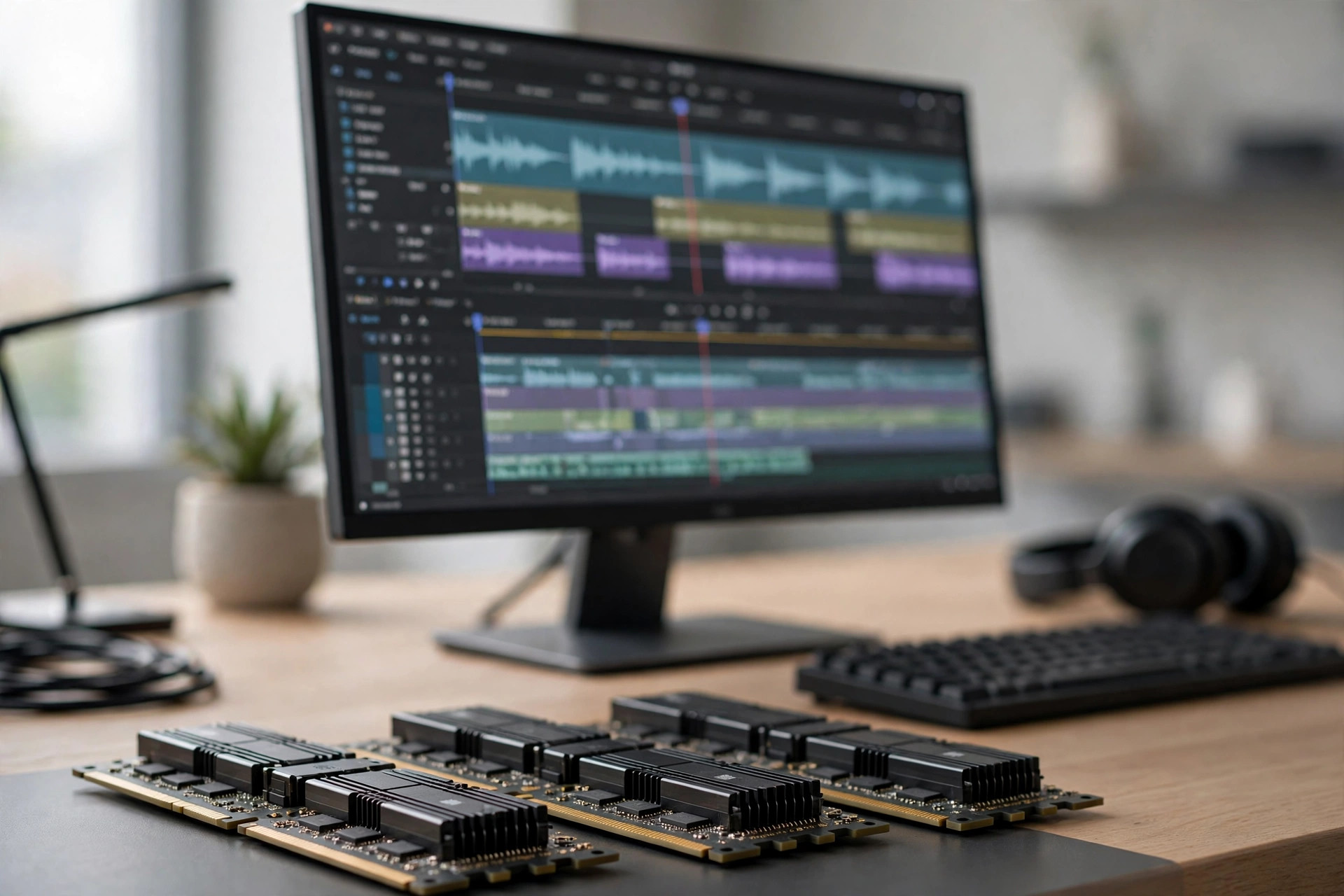
Video editing is one of the few workloads where RAM capacity is not a theoretical debate — it is a visible, tactile part of the editing experience. The difference between enough memory and not enough shows up as timeline scrubbing that stutters, previews that constantly re-render, and exports that crawl. In 2026, with DDR5 prices dramatically higher than they were a year ago, the 32GB vs 64GB decision for video editing carries real financial weight. This guide maps memory capacity to actual editing workflows so you buy what your projects need — no more, no less.
The short answer: 32GB for most, 64GB for serious work
For 1080p and light 4K editing in Premiere Pro or DaVinci Resolve, 32GB of DDR5 is the sweet spot — enough for smooth timeline playback, background rendering, and a browser full of reference tabs. For heavy 4K multicam, 6K/8K footage, After Effects compositing, or editing while other demanding apps run, 64GB is the professional standard and genuinely improves the experience.
The nuance: RAM does not make renders faster the way a better GPU or CPU does. What capacity buys you is headroom — the ability to keep more of your timeline, cache, and preview files in memory instead of paging to disk. When the system runs out, the operating system pages to the SSD, and even the fastest PCIe Gen5 SSD is orders of magnitude slower than RAM. That paging is what "not enough RAM" feels like.
How editing software actually uses RAM
Non-linear editors are memory-hungry in specific, predictable ways. Understanding the mechanism helps you size correctly:
Timeline caching and previews. Resolve and Premiere hold decoded frames in RAM so playback stays smooth. More RAM means longer cached previews and less re-rendering when you scrub back over a section. Multicam and stacked timelines. Every simultaneous video track multiplies the decoded-frame buffer. A four-camera 4K multicam timeline can use two to three times the memory of a single-track edit. Effects and compositing. After Effects is famously RAM-hungry — its entire preview workflow is built around RAM preview, and complex comps with particles, 3D layers, or heavy denoising can swallow 40GB+ alone. Background tasks. Proxies generating, media encoding, or an export running while you keep editing all compete for the same pool.
| Workflow | 32GB verdict | 64GB verdict |
|---|---|---|
| 1080p, single track, light effects | Plenty — comfortable headroom | Overkill |
| 4K single-camera, basic color | Sweet spot — smooth | Nice but unnecessary |
| 4K multicam (3–4 angles) | Workable, occasional paging | Recommended — smooth |
| 4K + heavy effects / Fusion comps | Tight — expect slowdowns | Sweet spot |
| 6K/8K RAW footage | Insufficient for comfort | Minimum practical |
| After Effects motion graphics | Limiting for complex comps | Recommended |
Codec deep dive: how H.264, HEVC, ProRes and RAW differ in memory demand
The codec often matters more than the resolution: interframe codecs demand decode buffers; lightly compressed and RAW codecs demand frame caches.
H.264 and HEVC (long-GOP). Most frames are stored as differences from reference frames, so displaying one frame means rebuilding it from surrounding keyframes. Scrubbing backward forces the decoder to reconstruct frame chains — why long-GOP timelines feel sluggish and multicam multiplies the pain. Per-stream memory is modest, but the constant decode cycle makes the system feel memory-starved.
ProRes and DNxHR (intraframe). Every frame stands alone, so the editor decodes only what it shows. The cost is size: a decoded 4K frame is roughly 33MB, so cached previews fill RAM fast — capacity buys longer previews and less re-rendering.
Camera RAW (BRAW, REDCODE, and similar). RAW files are small on disk but explode in memory: debayering produces full RGB frames with large transient buffers. One decoded 6K RAW frame can occupy several hundred megabytes; 8K doubles it — the classic 64GB-or-more workflow.
The capacity-planning takeaway: With H.264/HEVC, the first bottleneck is usually decode horsepower — proxies are the cheapest fix. With ProRes or RAW, capacity is the bottleneck: every extra gigabyte holds more timeline in memory.
Software-specific guidance
DaVinci Resolve is the most memory-efficient of the major editors for straight cutting, but its Fusion page (compositing) and noise reduction are voracious. For Resolve-only 4K work, 32GB is genuinely enough; add Fusion comps or temporal noise reduction and 64GB becomes the realistic floor.
Premiere Pro benefits from RAM up to a point, then becomes more dependent on GPU and fast storage. Adobe's own guidance lands at 32GB for 4K. Where Premiere users feel 64GB is in long timelines with many nested sequences, or when Dynamic Link pushes frames to After Effects — at which point both apps share the pool.
After Effects is the outlier: it will use everything you give it. RAM preview length scales directly with capacity, and 64GB roughly doubles usable preview duration versus 32GB. If motion graphics are your primary work, 64GB is not a luxury — it is the tool doing its job.
Final Cut Pro on Apple Silicon deserves a note: unified memory changes the equation, since the GPU shares the pool. For the PC builders this guide targets, the DDR5 numbers above apply; Mac buyers should think of 32GB unified as roughly the 32GB DDR5 tier, with the same upgrade logic.
RAM allocation settings in Premiere, Resolve and After Effects
Capacity only helps if the software may use it — and defaults are conservative. Check these memory controls after any RAM upgrade:
Premiere Pro — Edit > Preferences > Memory. The "RAM reserved for other applications" slider is the one that matters. On 32GB, reserve 6–8GB for the OS and background tasks. On 64GB, raise it to 8–10GB — Dynamic Link sessions with After Effects share the pool anyway.
After Effects — Preferences > Memory & Performance. Two controls interact: "RAM reserved for other applications" and "RAM allocated per background CPU" for multi-frame rendering. On 32GB keep per-worker allocations modest and reserve 8GB for other apps. On 64GB, reserve 10–12GB and raise per-worker allocation so background workers stop competing with the foreground comp.
DaVinci Resolve — Preferences > Memory and GPU. The "Limit Resolve memory usage to" slider caps the app, with a separate Fusion memory cache setting. On 32GB, leave ~8GB outside the cap for the OS. On 64GB, letting Resolve use 48–50GB is safe. If Fusion comps page, raise the Fusion cache first — a misconfigured cache is a common false alarm.
| Application | On a 32GB system | On a 64GB system |
|---|---|---|
| Premiere Pro (Memory prefs) | Reserve 6–8GB for other apps | Reserve 8–10GB; let Adobe apps share the rest |
| After Effects (Memory & Performance) | Reserve 8GB; keep multi-frame workers modest | Reserve 10–12GB; raise RAM per background CPU |
| DaVinci Resolve (Memory and GPU) | Cap at ~22–24GB; leave ~8GB for the OS | Cap at ~48–50GB; safe headroom remains |
| Fusion page cache (Resolve) | Keep modest (4–8GB) to protect the OS | Allow up to 16GB for complex comps |
The 2026 price question
Here is the uncomfortable part: moving from 32GB to 64GB in today's market can cost as much as the rest of the memory budget combined. DDR5 prices have roughly quadrupled since mid-2025, and the jump to 64GB is the single most expensive decision in many editing builds. Our analysis of the 2026 memory price surge breaks down why — and the strategic takeaway is to buy capacity for the work you do now, not hypothetical future projects.
Two cost-saving strategies are worth knowing. First, 2×32GB beats 4×16GB: two DIMMs are cheaper per gigabyte, run at higher stable speeds, and leave two slots free for a future jump to 128GB. Second, consider whether your bottleneck is really RAM — many editors who think they need 64GB actually need faster storage for their media cache, in which case a larger, faster SSD for active projects delivers more perceptible improvement per dollar.
Budget build recipes at 2026 prices
How the 32/64 decision lands in three concrete builds at current pricing, where a 64GB kit costs roughly double a 32GB kit:
1. The tight-budget 32GB build. A 2×16GB DDR5-5600/6000 kit, a mid-range CPU, and a modest GPU. Savings on RAM go to a 2TB NVMe Gen4 drive for media cache and active projects — for 1080p/4K YouTube work with proxies, this feels faster than a 64GB build on a cramped SATA drive. Priority: SSD capacity first, CPU second, RAM speed last.
2. The balanced 64GB build. A 2×32GB DDR5-6000 kit (two DIMMs, two slots free), a 12GB+ VRAM GPU, a strong multi-core CPU, and a fast Gen4/Gen5 project SSD — the no-compromises 4K multicam and After Effects machine. Don't pair it with a nearly full boot drive; memory headroom can't fix a starved cache disk.
3. The proxy-workflow saver. 32GB of RAM, with budget concentrated on decode and storage: a CPU with strong hardware decode plus fast external storage. Generate proxies on ingest, edit the lightweights, export from originals. RAM spend stays low and rivals the balanced build for single-track work — though multicam proxies and Fusion comps still want 64GB.
Proxy workflows: the great RAM equalizer
If 64GB is out of reach in this market, there is a legitimate workaround that professional editors have used for years: proxy workflows. Editing with lightweight proxy files instead of full-resolution originals dramatically cuts memory demand — a 4K timeline that struggles on 32GB with native files can run smoothly on the same 32GB with proxies, because the decoded-frame buffers shrink by an order of magnitude. Both Premiere Pro and DaVinci Resolve have mature one-click proxy generation, and the final export still uses the full-resolution originals, so quality is unaffected.
Proxies do not eliminate the 64GB argument — multicam proxy timelines and heavy compositing still benefit from more headroom — but they change the urgency. An editor doing single-track 4K YouTube content on 32GB with a proxy workflow will have a better experience than the same editor fighting native 4K files on 64GB with slow storage. Before spending the 64GB premium, try proxies for a week; you may find the capacity question answers itself.
Speed vs capacity for editing
Once capacity is sufficient, memory speed matters surprisingly little for video editing. The difference between DDR5-6000 and DDR5-6400 changes export times by low single-digit percentages at most — the encoder is fed by a pipeline where CPU, GPU, and storage all matter more. If you are choosing between 32GB of faster RAM and 64GB of slightly slower RAM for editing, take the 64GB every time. Capacity determines whether the workflow fits in memory at all; speed only trims the edges. For a general primer on sizing memory for all workloads, see how much RAM you really need in 2026.
Windows vs macOS memory handling for editors
Windows manages memory traditionally: under pressure it compresses pages in memory, then spills to the pagefile. On an NVMe SSD that spill is tolerable but an order of magnitude slower than RAM — the stutter when a timeline exceeds capacity. The PC advantage is flexibility: DIMMs are user-replaceable, so starting at 32GB and adding a matching kit later is legitimate, and Task Manager shows whether you are paging.
macOS on Apple Silicon uses unified memory: CPU, GPU, and media engines share one pool — no separate VRAM. That is efficient (no frame copies between engines), but the GPU competes with apps for the same gigabytes. Activity Monitor's memory pressure graph is the honest gauge: sustained yellow while editing means aggressive compression and swapping, which can mask a shortfall until exports slow down.
The consequence is about purchasing, not performance. Mac memory is soldered — a 4K editor should treat 32GB unified as the minimum and 64GB as the comfortable tier at checkout. A PC builder gets to be wrong cheaply: start at 32GB, watch the memory graph, upgrade when projects demand it.
The 128GB question: when 64GB isn't enough
For a small slice of workflows, 64GB is the floor. 8K RAW finishing is the clearest case: decoded 8K frames and debayer buffers consume tens of gigabytes per timeline segment. Deep Fusion trees, particle sims, and cached 3D layers scale with capacity almost linearly, as do virtual production and editing while rendering 3D in another app — two heavyweight apps, one pool.
Reaching 128GB is where platform realities bite. Consumer UDIMMs top out at 48GB per stick (2×48GB = 96GB); the classic 128GB path is 4×32GB, which loads the memory controller and often can't hold rated XMP speeds. The clean route is an HEDT/workstation platform with RDIMMs — more channels, ECC, stability — at a platform cost dwarfing the DIMMs.
The honest verdict: if you have to ask whether you need 128GB, you almost certainly don't. The editors who need it know — they're paging on 64GB with the graph to prove it. For everyone else in this market, 128GB money buys a better GPU, faster storage, and a backup drive, all of which improve the edit more than unused capacity.
Common mistakes editors make with RAM
Buying speed over capacity. A 32GB DDR5-7200 kit loses to a 64GB DDR5-5600 kit every time: speed tiers change exports by low single digits, while fitting in memory versus paging is smooth versus miserable. Capacity first, always.
Filling all four DIMM slots at rated speeds. Four-DIMM configs stress the memory controller, and DDR5 is less forgiving than DDR4 — a kit stable as 2×32GB may not hold XMP as 4×16GB. Two larger DIMMs are faster, cheaper per gigabyte, and leave room to grow.
Blaming RAM for a storage bottleneck. A full or slow cache drive mimics insufficient memory: stuttering playback, slow previews, long export prep. Before buying DIMMs, confirm the media cache sits on a fast NVMe drive with 20%+ free — many "I need 64GB" cases are really a full SATA SSD.
Overbuying for a proxy workflow. If you edit proxies for everything, decoded-frame buffers are tiny and 32GB is plenty — the 64GB premium buys headroom you'll never touch. Match RAM to the footage you actually decode.
Mixing kits when upgrading. Adding a different-brand or different-die kit is the classic source of random crashes blamed on "bad RAM." Buy the identical kit model when expanding; if discontinued, replace the whole set.
Forgetting GPU VRAM. System RAM and VRAM are separate pools on a PC. An 8GB GPU running out of memory during accelerated effects stutters no matter how much DDR5 is installed — check GPU memory usage before blaming the DIMMs.
Who it's for / who should skip it
Buy 64GB if: you edit 4K multicam or 6K/8K footage regularly; After Effects or Fusion compositing is a core part of your work; you run exports while continuing to edit; or you use RAM-hungry companions like local AI tools, large Lightroom catalogs, or 3D rendering alongside editing.
32GB is enough if: you edit 1080p or single-track 4K with basic color; your timelines are short-form content (YouTube, social); you use proxies for heavy footage (which dramatically cuts memory demand); or budget is tight in the current price environment — 32GB of good DDR5 with fast project storage will feel better than 64GB paired with a slow drive.
FAQ
Does more RAM make video exports faster?
Only up to the point of sufficiency. Once your project fits comfortably in memory, adding more RAM does not speed up encoding — export speed is governed by CPU/GPU encoder performance and storage throughput. RAM capacity eliminates slowdowns from paging; it does not accelerate the render itself.
Is 32GB enough for 4K video editing in DaVinci Resolve?
Yes, for single-camera 4K with standard color work — 32GB is the widely recommended sweet spot. It becomes tight with multicam timelines, Fusion effects, or temporal noise reduction, where 64GB is the safer choice.
Should I get 2x32GB or 4x16GB for 64GB?
2x32GB, without question. Two DIMMs place less load on the memory controller (better stability and speeds), usually cost less, and leave two slots open for a future upgrade to 128GB. Four-DIMM configurations often cannot sustain the same rated speeds.
Will DDR5 speed (6000 vs 6400) matter for Premiere Pro?
Barely. Expect low single-digit percentage differences in timeline responsiveness and exports. For editing builds, always prioritize getting the right capacity first, then buy whatever reputable speed tier fits the remaining budget.
Can I start with 32GB and add more later?
Yes — and it is a sound strategy in this market. Buy a 2x16GB kit now on a four-slot board, and add a matching 2x16GB kit later if projects outgrow it. For the cleanest compatibility, buy the identical kit model when you expand.
How much RAM does After Effects need for 4K motion graphics?
64GB is the realistic baseline: RAM preview length scales directly with capacity, and 4K comps with particles, 3D layers, or denoising can exceed 32GB alone. On 32GB you preview in short segments; on 64GB you preview long sections without constant re-rendering.
Does unified memory on a Mac change the 32GB vs 64GB decision?
The tiers stay the same but the stakes are higher: unified memory is soldered — no later upgrade — and the GPU shares the pool. A Mac editor doing 4K should default to 64GB unified when budget allows, since one purchase covers system and graphics memory for the machine's life.
Is 128GB of RAM worth it for video editing?
Only for 8K RAW finishing, heavy VFX compositing, or virtual production — workflows where 64GB demonstrably pages. For 4K editing, 128GB sits unused while the GPU and storage do the real work. Spend the difference on a better GPU or a faster project SSD instead.
If I can only upgrade one thing — RAM speed or capacity — which first?
Capacity, without exception. Going from 32GB to 64GB at a modest speed eliminates paging; going from DDR5-5600 to DDR5-6400 at the same capacity trims a few percent off exports. No speed tier compensates for a timeline that does not fit in memory.