PCIe 5.0 SSD Heatsinks and Motherboard Compatibility
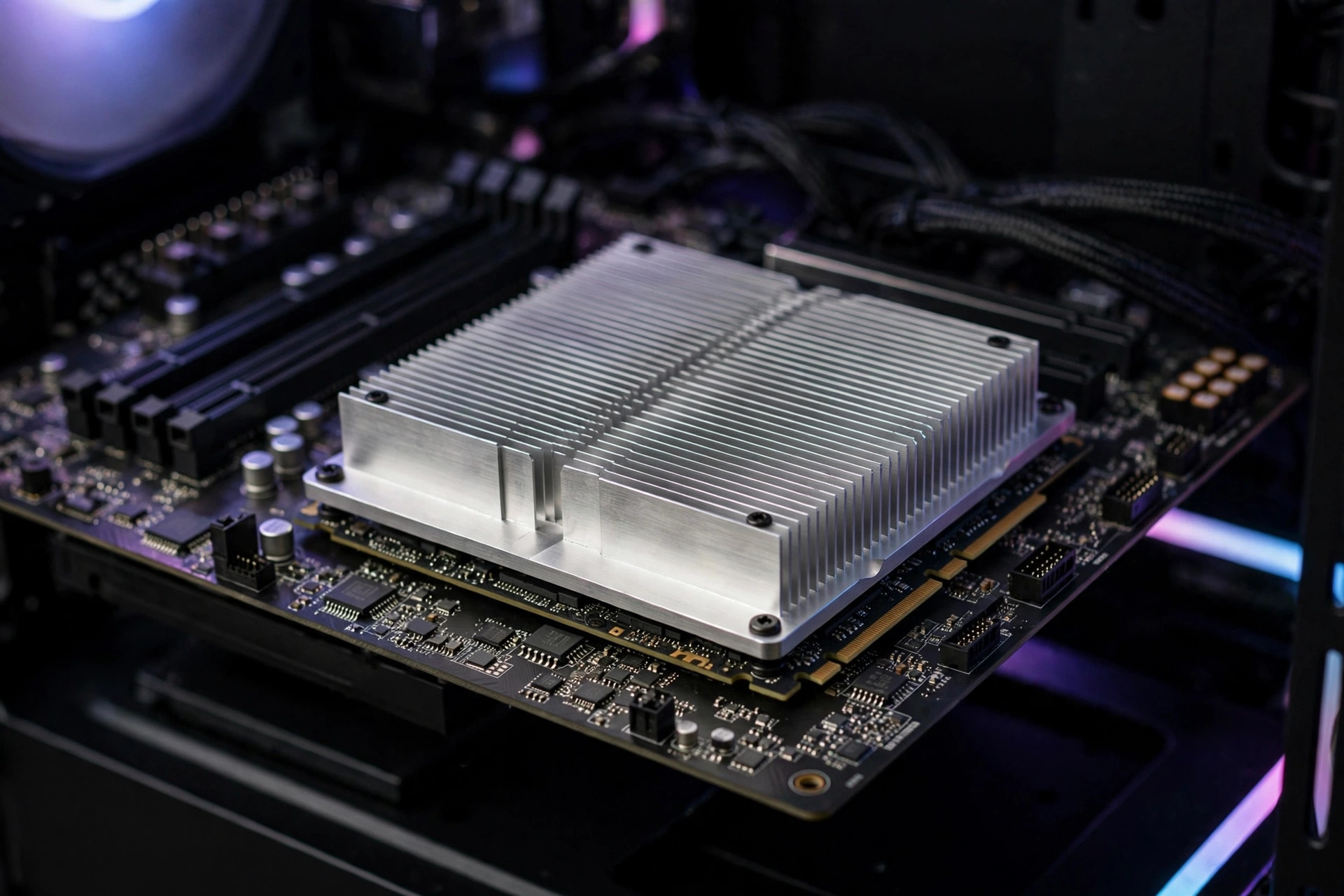
PCIe 5.0 SSDs deliver sequential speeds north of 12,000 MB/s — roughly double the previous generation. The price of that speed is heat: Gen5 controllers draw substantially more power than their Gen4 predecessors, and without proper cooling they throttle within seconds of a heavy workload. At the same time, not every M.2 slot on your motherboard can actually feed a Gen5 drive at full speed. This guide covers heatsink options and motherboard compatibility so your Gen5 upgrade performs the way the box promises.
Why Gen5 SSDs run so much hotter
A Gen4 SSD controller typically draws 6–8W under load. Gen5 controllers push 10–14W — and all of it concentrates in a chip the size of a fingernail. NAND flash itself also generates more heat at Gen5 signaling rates. The result: a bare Gen5 drive under sustained writes can climb past 80°C in under a minute, at which point firmware thermal throttling cuts performance to protect the silicon — sometimes below Gen4 speeds, defeating the entire purpose of the upgrade.
This is not a defect; it is physics. Every Gen5 drive on the market assumes active thermal management. The question is never whether to cool it, but how. If you are still deciding whether the Gen5 jump is worth it for your workload, our analysis of whether PCIe 5.0 SSDs are worth it breaks down where the extra speed actually matters.
Motherboard compatibility: slots, lanes and chipsets
Before buying a heatsink, confirm your board can actually run the drive at Gen5 speed. Three things must line up:
1. A Gen5-capable M.2 slot. Only the primary M.2 slot (usually the one nearest the CPU, wired directly to the processor) supports Gen5 on most boards. Secondary slots hang off the chipset and are typically Gen4. Check the manual's block diagram — marketing that says "PCIe 5.0 ready" sometimes means one slot, not all of them.
2. A Gen5-capable CPU. The slot's generation follows the CPU's PCIe controller. A Gen5 board with an older CPU that only supports Gen4 will run the slot at Gen4 speed. On AMD, that means Ryzen 7000 or newer; on Intel, 12th-gen Core or newer for the primary slot.
3. Lane sharing awareness. On many boards, populating the Gen5 M.2 slot steals lanes from the primary PCIe x16 slot, dropping the GPU from x16 to x8. For current GPUs the real-world gaming impact is 1–3%, but it is worth knowing before you build. Some boards share the Gen5 slot with SATA ports or a second M.2 slot instead — again, the manual's diagram is the truth.
| Platform | Gen5 M.2 support | Typical lane-sharing tradeoff |
|---|---|---|
| AMD AM5 (X670E / X870E) | Primary slot Gen5 on most boards | GPU drops to x8 on some layouts when Gen5 SSD installed |
| AMD AM5 (B650 / B850) | Varies — many boards are Gen4-only | Check per-board specs carefully |
| Intel LGA1700 (Z790) | Primary slot Gen5 on most boards | Often shares with GPU x16 slot |
| Intel LGA1851 (Z890) | Primary slot Gen5 standard | More lanes overall; fewer compromises |
| Older platforms (AM4, LGA1200) | No native Gen5 | Gen5 drive works but runs at Gen4 speed |
A Gen5 drive in a Gen4 slot is not wasted — it runs at Gen4 speed, which is still excellent, and you keep the drive for a future platform upgrade. But do not pay the Gen5 premium and then strangle it in the wrong slot.
Heatsink types compared
| Heatsink type | Cooling performance | Cost | Best for |
|---|---|---|---|
| Motherboard integrated heatsink | Good — thick plate, large surface | Free (included) | Most users; start here |
| Drive-included heatsink | Good to very good | Bundled in drive price | Boards without M.2 heatsinks |
| Aftermarket passive (finned) | Very good | $10–25 | Sustained workloads, silent builds |
| Active (tiny fan) | Excellent | $20–40 | Workstations, hot cases, Gen5 RAID |
| No heatsink (bare) | Inadequate for Gen5 | $0 | Nobody — not a real option for Gen5 |
Motherboard heatsinks are the default answer and genuinely good — modern boards ship with thick, finned M.2 covers that handle Gen5 thermals in a case with normal airflow. If your board has one, use it before buying anything.
Aftermarket passive heatsinks with tall fins outperform most motherboard plates and cost little. They are the sweet spot for sustained-write workloads like video capture or large dataset copies.
Active coolers with small fans are overkill for gaming but justified in workstations where the drive sustains maximum throughput for minutes at a time, or in compact cases with poor airflow. The fan noise is the tradeoff — check reviews for dBA figures.
Do you actually need an aftermarket heatsink?
| Workload | Motherboard heatsink enough? | Aftermarket needed? |
|---|---|---|
| Gaming, OS drive, general use | Yes | No |
| Occasional large file copies | Yes | No |
| Video editing (4K+ timelines) | Usually | Recommended for long sessions |
| Sustained writes (capture, datasets) | Borderline | Yes — passive finned or active |
| Compact / poor-airflow case | Often not | Yes |
The pattern: bursty workloads (gaming, OS tasks) never push a Gen5 drive long enough to overwhelm a motherboard heatsink. Sustained workloads do. Match the cooling to the duty cycle, not to anxiety. For the broader question of keeping any SSD cool regardless of generation, our general SSD heatsink guide covers thermal pads, case airflow, and temperature monitoring.
Installation: mistakes that cost performance
Forgetting to peel the plastic. Thermal pads ship with protective film on both sides. Leave one layer on and you have installed an insulator, not a conductor. Peel both.
Double-stacking heatsinks. If your drive came with its own heatsink, do not install it under the motherboard's heatsink too. Two heatsinks in series trap heat between them. Use one or the other — whichever is beefier, which is usually the motherboard's.
Wrong slot. The most common "my Gen5 drive is slow" cause is simply installing it in a Gen4 chipset slot. The primary CPU-connected slot is almost always the topmost one; verify with the manual.
Blocking airflow. A great heatsink in a dead-air pocket behind a GPU backplate still overheats. Ensure at least some case airflow reaches the M.2 area — even a single directed fan helps enormously.
Overtightening. M.2 screws need gentle pressure. Cranking them down can bow the drive PCB or crack the standoff. Snug is sufficient — if the drive does not move when nudged, it is tight enough.
What about the FURY Renegade G5 specifically?
The current flagship Gen5 drive from the manufacturer ships in a heatsink-equipped version tuned for its controller's thermal profile. If your motherboard lacks an integrated M.2 heatsink, buying the heatsink version is simpler and usually cheaper than drive-plus-aftermarket-cooler. Our hands-on look at the FURY Renegade G5 covers its thermal behavior under sustained load in detail.
Who needs to care — and who does not
This guide is for you if: you are buying or already own a Gen5 SSD, you do sustained-write work (video, datasets, servers), you are building in a compact case, or your drive is throttling and you do not know why.
You can skip it if: you run Gen4 or SATA drives (a basic motherboard heatsink or even bare is fine for most Gen4 use), your workload is gaming and office tasks, or your board's integrated cooling already keeps temperatures under 70°C — verified, not assumed.
Thermal testing: what ten minutes of sustained writes looks like
Spec-sheet numbers do not convey how quickly thermals become the story. Here is a representative scenario — a Gen5 drive writing a large dataset continuously — under different cooling setups:
| Cooling setup | Temp at 1 min | Temp at 5 min | Temp at 10 min | Sustained speed |
|---|---|---|---|---|
| Bare drive, no airflow | 68°C | 81°C (throttling) | 83°C (throttled) | ~3,500 MB/s |
| Motherboard heatsink, normal case airflow | 58°C | 66°C | 69°C | ~11,500 MB/s |
| Aftermarket finned passive, normal airflow | 54°C | 61°C | 63°C | ~12,000 MB/s |
| Active cooler (fan), normal airflow | 50°C | 55°C | 56°C | ~12,400 MB/s |
Two lessons jump out. First, the bare drive does not just run hot — it collapses to below Gen4 speeds, making the Gen5 premium pure waste. Second, the gap between a decent motherboard heatsink and an aftermarket solution is real but modest for most users; the chasm is between any cooling and none. If your drive is throttling, the fix is almost never a fancier heatsink — it is confirming that a heatsink is actually installed and making contact.
Also note the time dimension: nothing looks wrong at 30 seconds. Thermal problems reveal themselves over minutes, which is why a quick benchmark never catches them. Test with a ten-minute sustained write if you want the truth about your cooling.
Case airflow: the forgotten half of SSD cooling
A heatsink does not destroy heat — it moves it into the surrounding air. In a case with no airflow over the M.2 area, even an excellent heatsink eventually saturates, and temperatures creep upward over long sessions. The M.2 slots sit in notoriously dead-air zones: sandwiched between the GPU backplate and the CPU cooler, or hidden under a motherboard shroud.
The fixes are unglamorous but effective. A single 120mm intake fan positioned to wash air across the motherboard — not just the GPU — can drop M.2 temperatures 5–10°C. In compact builds, even a small fan zip-tied to blow across the SSD area transforms thermals. Cable management matters here too: a nest of cables blocking the lower motherboard region starves exactly the slots that need air most.
Before buying any SSD cooler, run this free test: remove the side panel and point a desk fan into the case during a sustained write. If temperatures drop significantly, your problem is airflow, not the heatsink — and a $15 case fan beats a $40 SSD cooler.
Laptops and Mini-PCs: Gen5 thermals in small chassis
Desktop advice translates poorly to machines where you cannot add a heatsink or a fan. Gaming laptops and Mini-PCs with Gen5 slots face the same 10–14W controller heat in a fraction of the volume, and the manufacturer's thermal design is the only cooling you get.
In practice, mobile Gen5 drives spend much of their working life gently throttled — firmware tuned for the chassis keeps temperatures in check by capping sustained speeds well below desktop figures. This is normal and by design, not a defect. It does mean the Gen5 premium buys less in a laptop: you get the burst speed for OS and game loads (where it matters) but not the sustained throughput of a desktop.
If you are upgrading a laptop or Mini-PC SSD yourself, match the drive to the chassis: a cooler-running Gen5 drive (or even a top-tier Gen4 drive) often delivers a better real-world experience than the hottest flagship throttling itself in a thermal envelope it was never designed for. And never remove a laptop's factory thermal pad or graphite sheet thinking an aftermarket solution will be better — the factory solution was engineered for that exact chassis.
2026 motherboard roundup: Gen5 slot layouts worth knowing
Board vendors have converged on a few patterns, but the details still vary enough to check before buying:
Enthusiast ATX (X870E / Z890): Gen5 on the primary M.2 slot is now standard, with many boards adding a second Gen5 slot. Lane sharing with the GPU x16 slot remains common when both Gen5 slots are populated — read the block diagram if you run both a flagship GPU and two Gen5 drives.
Mid-range ATX (B850 / B860): Primary-slot Gen5 is increasingly common but not universal; some boards in this segment are still Gen4 throughout. This is the segment where "PCIe 5.0 ready" marketing is most misleading — verify the actual slot specs.
Mini-ITX: Usually one Gen5-capable primary slot with an integrated heatsink that is genuinely adequate, thanks to the board's compact, well-ventilated layout around the slot. The constraint here is physical: tall aftermarket SSD heatsinks may not clear the GPU or case panels.
Workstation (WRX90 / W790): Multiple Gen5 slots with proper spacing and heatsinks, designed for exactly the sustained workloads that need them. If you are building for heavy sequential work, this is the platform where Gen5 makes the most sense — and where active SSD cooling is most justifiable.
Gen5 heatsink buyer's checklist
If you have decided an aftermarket cooler is warranted, run through this checklist before buying:
1. Measure your clearance. Tall finned heatsinks can foul the GPU in the top x16 slot or hit the side panel in compact cases. Check the cooler's height against your case and GPU layout — most product pages list dimensions, and a ruler beats a return shipment.
2. Confirm M.2 length compatibility. Most coolers fit standard 2280 drives; 22110 (enterprise length) and 2230/2242 (handheld) need specific models. Buying the wrong length is the most common avoidable mistake.
3. Check what is in the box. A complete kit includes the heatsink body, pre-cut thermal pads for both sides of the drive, a mounting clip or screws, and sometimes a tiny screwdriver. Missing pads mean an extra purchase and a delayed build.
4. Decide passive vs active honestly. Passive finned coolers are silent and sufficient for everything short of sustained workstation loads. Active coolers win on absolute performance but add a small, high-pitched fan to your acoustic profile — read noise reviews, not just thermal reviews.
5. Do not pay for branding over mass. Heatsink performance correlates with surface area and fin density, not logos. A well-reviewed $15 finned cooler outperforms a $35 designer slab with half the fins. Look for independent temperature testing under sustained load, not marketing claims. And keep the receipt and original packaging until you have verified temperatures under your own workload — a cooler that excels in someone else's airflow may behave differently in yours.
FAQ
Can I use a Gen5 SSD without any heatsink temporarily?
For light testing, yes — the drive will throttle to protect itself rather than die. But sustained use without cooling means permanent throttling under load, which wastes the Gen5 premium. Install proper cooling before putting the drive into service.
Will a Gen5 SSD work in a Gen4 motherboard?
Yes. PCIe is backward compatible — the drive negotiates Gen4 speed and works normally, just capped at ~7,000 MB/s sequential. It is a reasonable way to buy ahead for a future platform upgrade.
Does installing a Gen5 SSD slow down my GPU?
On some boards, yes — from x16 to x8 on the primary PCIe slot. In gaming, the measured impact on current GPUs is typically 1–3%, often within margin of error. For GPU-compute workloads, check your specific board's lane diagram.
Are thermal pads or thermal putty better for M.2 drives?
Quality thermal pads (included with most heatsinks) are fine and foolproof. Putty conforms better to uneven surfaces and can perform slightly better, but it is messier and harder to remove. For most users, the included pad is the right choice.
How hot is too hot for a Gen5 SSD?
Sustained operation above 75–80°C is where throttling begins on most drives; keeping the controller under 70°C under load is the target. Brief spikes during heavy bursts are normal and harmless.
Can I reuse my Gen4 heatsink for a Gen5 drive?
Usually yes — a heatsink is just metal, and a good Gen4-era finned cooler handles Gen5 heat fine. The exception is ultra-thin motherboard plates from the early Gen4 era, which may be undersized for 10W+ controllers. When in doubt, test with a ten-minute sustained write and watch the temperatures. Also replace the thermal pad if it is more than a couple of years old — pads dry out and lose conductivity, and a fresh pad on an old heatsink often beats a new heatsink on a dead pad.
Do I need to replace the thermal pad when reinstalling a heatsink?
If the pad is intact, clean, and still tacky, reuse is fine. If it is torn, dried out, or contaminated with dust, replace it — pads are cheap and a compromised pad is worse than most people expect, since air gaps insulate dramatically. Keep the protective film point in mind: new pads ship with film on both sides, and both must come off.
Is liquid cooling a Gen5 SSD ever worth it?
For 99% of users, no — it is enthusiast theater. A good passive or active air cooler keeps any Gen5 drive at full speed indefinitely. Liquid makes sense only in exotic builds where the SSD sits in a custom loop for aesthetic consistency, or in passively-cooled industrial systems with no case airflow at all.
Will installing an aftermarket heatsink void my SSD warranty?
Installing a heatsink does not void the warranty — it is expected and encouraged. What can cause issues is physically damaging the drive during installation (cracked PCB from overtightening, torn labels covering screws if the vendor is strict about them). Keep the original heatsink and hardware in case of an RMA, and photograph the drive before disassembly. If the drive fails for an unrelated reason, reinstall the factory cooling before sending it in — it removes any possible argument.