Best 2TB NVMe SSD for PS5 in 2026
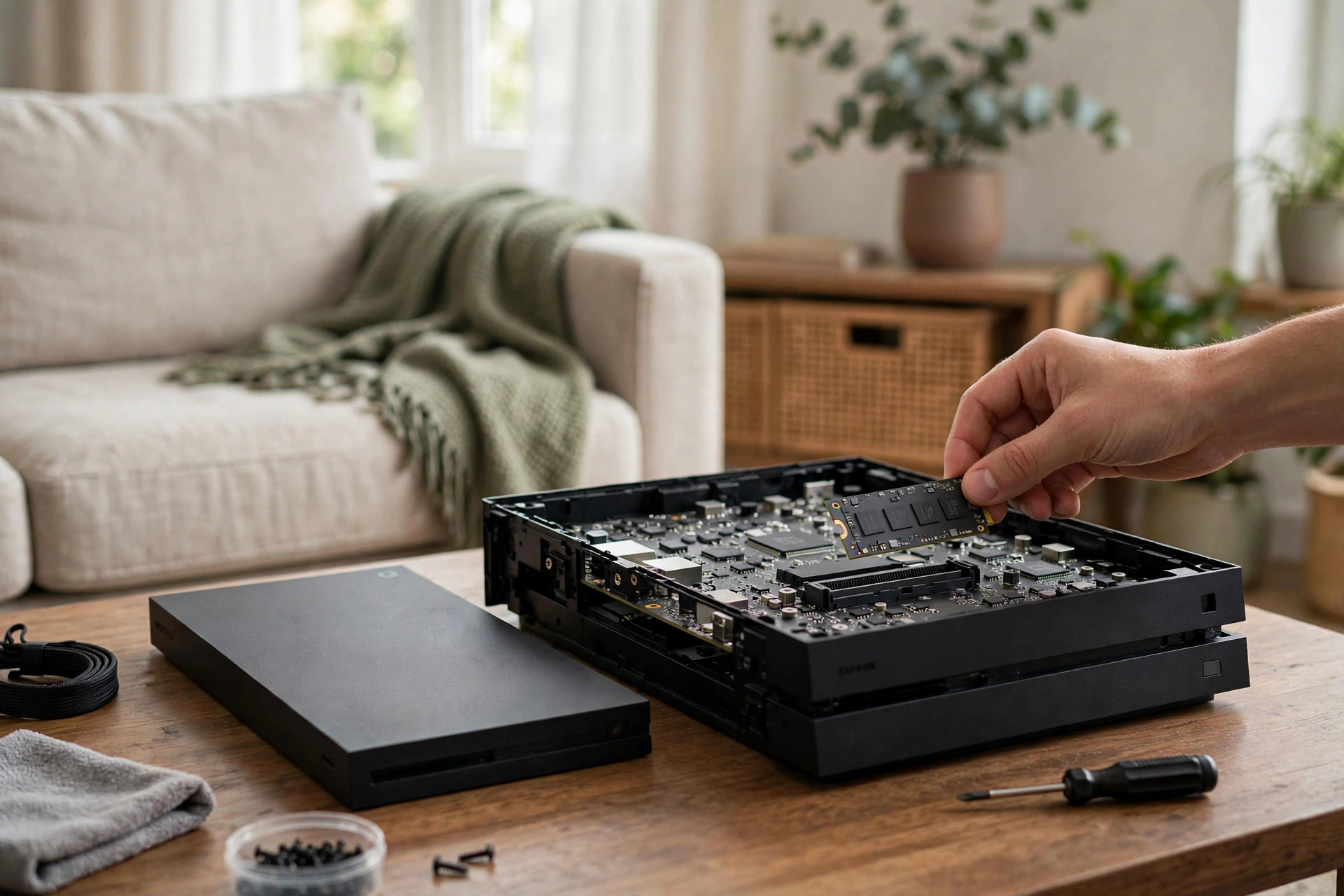
A 2TB internal expansion is the single best quality-of-life upgrade you can buy for a PlayStation 5 in 2026. Modern blockbusters routinely ship at 100–150GB, system software and capture galleries nibble away at the rest, and the stock 825GB/1TB drive fills up fast — deleting and redownloading games on a slow connection is nobody's idea of fun. Sony's M.2 expansion slot solves the problem cleanly, but only if the drive you buy meets the console's strict requirements. This guide breaks down exactly what the PS5 demands, which 2TB NVMe SSDs are worth your money right now, and how to install one without drama.
Sony publishes a clear checklist, and drives that miss any item simply won't work — or won't work at full speed. Before you shop, memorize these specs:
- Interface: PCIe Gen4 x4 NVMe, socket 3 (key M).
- Sequential read speed: 5,500 MB/s or faster. In practice, buy 6,000 MB/s or above — real-world throughput inside the console runs slightly below the drive's headline rating.
- Form factor: M.2 2230, 2242, 2260, 2280, or 22110. Nearly every consumer drive is 2280, which fits fine.
- Heatsink: strongly recommended by Sony and effectively mandatory. The drive bay has limited airflow; a bare drive will thermally throttle during long installs. Either buy a model with a pre-fitted heatsink or add a low-profile one yourself — total height including heatsink must stay under 11.25mm (8mm above the board, 2.45mm below).
- Capacity: 250GB to 8TB. 2TB remains the sweet spot for price per gigabyte in 2026.
Note: the console's format-time speed check measures a burst, not sustained throughput — but there's no reason to buy borderline when drives with real headroom cost barely more.
One common misconception: PCIe Gen5 drives are not meaningfully faster in a PS5. The console's slot is Gen4 x4, so a Gen5 drive falls back to Gen4 speeds — and usually costs more. Our guide to whether PCIe 5.0 SSDs are worth it in 2026 explains when the newer standard actually pays off, but for a PS5, a fast Gen4 drive is the rational pick.
The best 2TB PS5 SSDs compared
| Drive | Seq. read | Heatsink included | NAND | Why it stands out |
|---|---|---|---|---|
| FURY Renegade 2TB | 7,300 MB/s | Yes (low-profile graphene/aluminum) | 3D TLC | Consistently fast under sustained writes; excellent endurance rating |
| KC3000 2TB | 7,000 MB/s | Optional SKUs | 3D TLC | Flagship-class controller, strong random performance for game loads |
| Value-tier Gen4 2TB (DRAM-less, HMB) | 6,000–6,500 MB/s | Usually not — add your own | 3D TLC or QLC | Best price per GB; fine for a pure game library |
| Heatsink-bundled mainstream 2TB | 7,000 MB/s | Yes | 3D TLC | Plug-and-play convenience, no fiddly thermal pads |
How this shortlist was built: every drive above clears Sony's 5,500 MB/s bar with headroom and is widely available from reputable retailers — no grey-market-only models, and no drives with a history of silent component swaps between revisions.
What 2TB costs in 2026: pricing tiers and when to buy
NAND pricing moves in cycles, and 2026 sits in a buyer-friendly part of one: budget DRAM-less 2TB drives at the bottom, mainstream heatsink-bundled 2TB in the middle — the best value for most — and flagship 2TB drives like the FURY Renegade and KC3000 commanding roughly 25–40% more for faster controllers, better sustained writes, and higher endurance.
The steepest discounts land in the late-year sales season — waiting a few weeks can save 15–25%. Buy from reputable retailers; marketplace sellers far below the going rate often sell counterfeits.
Our top picks, explained
Best overall: FURY Renegade 2TB with heatsink
The FURY Renegade has been the enthusiast default for years, and in 2026 it remains the drive we'd recommend to most PS5 owners. Its 7,300 MB/s headline read speed clears Sony's bar with comfortable headroom, the graphene-aluminum heat spreader fits comfortably under the 11.25mm height limit, and the 3D TLC NAND paired with a high-end controller holds up during the punishing sustained writes of a 150GB game install — exactly where cheaper drives slow down. Endurance is rated generously, so years of install-delete-reinstall cycles won't faze it.
What you're really paying for is consistency: the large SLC cache and mature firmware keep write speeds high deep into long transfers, and the pre-fitted heatsink removes the fiddliest part of installation.
Best performance alternative: KC3000 2TB
The KC3000 trades blows with the Renegade on raw throughput and edges ahead in some random-read workloads, which is the metric that most directly affects how snappy game loading feels. Some SKUs ship without a heatsink, so check the box carefully or budget a few dollars for a third-party low-profile heatsink. If you find it cheaper than the Renegade, buy with confidence — in a PS5 you will not feel a difference between the two.
Its 8-channel flagship controller with onboard DRAM keeps random I/O latency low for texture streaming, with endurance in the same league as the Renegade. Confirm the exact SKU — heatsink and non-heatsink versions share a product name.
Best budget pick: a value Gen4 2TB
If the drive will hold nothing but games — no recording, no constant reinstall churn — a cheaper DRAM-less Gen4 drive using host memory buffer (HMB) technology is perfectly adequate. Game loading is overwhelmingly a sequential-read workload, which is precisely what these drives do well. Just be honest about the trade-off: sustained write speeds collapse once the SLC cache fills, so installing three 120GB games back-to-back will take noticeably longer. Pair it with a proper low-profile heatsink from our SSD heatsink guide rather than running it bare.
Stick to 3D TLC models from established brands; avoid the cheapest QLC unless the price gap is dramatic. Check reviews for sustained-write results rather than headline numbers, and watch for silent controller or NAND swaps between hardware revisions.
Under the hood: controllers, NAND, and caches
You don't need an engineering degree to buy a PS5 SSD, but a rough mental model of what's inside the drive explains why two 7,000 MB/s drives can behave differently. Three components matter: the controller, the NAND flash, and the caching strategy.
The controller is the drive's processor. Flagship Gen4 controllers use eight NAND channels plus onboard DRAM for instant access to the flash translation layer — the map of where data lives. Budget controllers use four channels and no DRAM, borrowing system memory over PCIe (HMB) instead. In a PS5 the difference is small for game loading but real for sustained writes.
The NAND is the actual storage. 3D TLC — three bits per cell — is the standard for every drive we'd recommend. QLC costs less but writes natively far slower and wears faster, hiding behind an SLC cache: a slice of NAND run in fast single-bit mode. While writes fit the cache it feels fast; once a 150GB install fills it, speeds crater until the drive catches up in the background.
That cache behavior is the most important spec that isn't printed on the box. Premium TLC drives have big, well-managed caches and fast native NAND behind them, so the drop-off is shallow; budget drives have smaller caches and slower native NAND, so it's steep. For overnight downloads none of this matters; for back-to-back installs on gigabit fiber, it's the difference a spec sheet can't show you.
Real-world performance: what to actually expect
Temper expectations on load times. The PS5's custom I/O complex — not just the SSD — is what makes first-party titles load in seconds, and third-party drives match or slightly trail the internal drive. In practice, a good 2TB Gen4 drive loads games within a second or two of internal. The bigger win is convenience: 12–15 major titles installed at once instead of 4–5.
Where drive choice shows up is sustained installs and copies. Moving a 100GB game between internal storage and the M.2 drive is a long sequential transfer — premium controllers and healthy SLC caches earn their keep here, while budget drives can take roughly twice as long once their cache is exhausted.
To put numbers on it, here are realistic expectations for a good 2TB Gen4 drive — not lab benchmarks, but what the experience feels like:
- Loading a AAA open-world save: typically 3–8 seconds, within a second or two of the internal SSD.
- Fast travel in large games: 2–5 seconds — where a throttled bare drive stutters and a heatsink-equipped one doesn't.
- Installing a 100GB game from disc: roughly 8–15 minutes, limited mostly by the Blu-ray drive.
- Downloading 100GB on gigabit broadband: the SSD can become the bottleneck; premium drives sustain high writes throughout, budget drives may slow the tail end.
- Copying 100GB between internal and M.2 storage: about 3–6 minutes on a premium drive; budget DRAM-less drives can take roughly twice as long once their cache is exhausted.
The honest summary: for playing games, any drive on our shortlist is effectively identical to the internal SSD. For managing a large library — installing, copying, shuffling — premium drives pull ahead in ways you'll notice a few times a month. Buy premium if you churn through games constantly; buy budget if your library sits still once installed.
Which tier fits which player
| Buyer profile | Best tier | What to prioritize | What to skip |
|---|---|---|---|
| Plays a few big games at a time, fast internet | Budget 2TB Gen4 | Heatsink, 3D TLC NAND, reputable brand | Flagship premium — you won't use the headroom |
| Rotating library of 10+ AAA titles | Mainstream heatsink-bundled 2TB | Plug-and-play convenience, solid sustained writes | Bare drives (extra heatsink hassle) |
| Gigabit downloads, constant install churn | Flagship 2TB (Renegade / KC3000) | Deep SLC cache, high endurance, pre-fitted heatsink | QLC or unknown-controller budget models |
| PS Plus Extra backlog collector | 2TB mainstream or 4TB if budget allows | Capacity first, then sustained-write consistency | 1TB — you'll be managing storage within months |
Installation: step by step
Sony designed the expansion slot for end users — no warranty stickers to break, no exotic tools. The full process, with the details that first-timers usually miss:
- Power down completely and unplug. Hold the power button until the console beeps twice. Rest mode is not enough — the M.2 slot is not hot-swappable.
- Remove the side panel on the disc-drive side (on Slim models, the appropriate split panel) and lay the console on a soft cloth.
- Pop off the expansion-slot cover — the rectangular metal cover held by a single Phillips screw — and move the spacer to the 80mm position.
- Fit the heatsink first if your drive is bare. Peel the film from the thermal pads and seat the drive per the heatsink's instructions; pads must contact the controller and NAND packages.
- Insert the drive at roughly 30 degrees, press it down flat onto the spacer, and secure it with the screw. Snug is enough — overtightening can crack the PCB.
- Reattach the slot cover and side panel, then boot and format. The PS5 detects the drive, offers to format it, and runs a read-speed check.
- Set your default install location in Settings > Storage > Installation Location — PS5 games to the M.2 drive, PS4 games and media to a cheap USB external drive.
- Move, don't redownload. In Settings > Storage you can move installed games between internal storage and the M.2 drive — much faster than redownloading on a slow connection.
If the console doesn't detect the drive, power off and reseat it — incomplete insertion is the most common cause, followed by a heatsink too tall to let the slot cover close.
Heatsinks: don't skip this part
The PS5's expansion bay sits behind a metal cover with modest ventilation. During a long download-and-install session the drive can sustain heavy writes for 30–60 minutes, and controller temperatures climb fast. A drive without a heatsink will thermally throttle — write speeds can crater to a few hundred MB/s, turning a 20-minute install into an hour-long one.
Pre-fitted heatsink models are the path of least resistance. If you go the DIY route, measure twice: the 11.25mm total-height ceiling rules out the chunky tower-style heatsinks sold for desktop motherboards. Slim graphene pads plus a thin aluminum spreader, or a purpose-built PS5 low-profile heatsink, are the safe choices.
Thermal pads do the real work — they must contact the controller and NAND packages. Replace pads if you refit the heatsink, and never stack a third-party heatsink on a factory-fitted spreader: you'll exceed the height limit and trap heat between the layers.
2TB vs 1TB vs 4TB for PS5
1TB expansions made sense when they were cheap, but the price gap to 2TB has narrowed enough that 1TB is now a false economy — you'll be managing storage again within a year. 4TB is luxurious and genuinely useful if you keep a huge library installed, but you pay a premium per gigabyte and the console can't use the extra speed of pricier drives anyway. For most players, 2TB is the set-and-forget capacity. Our 2TB vs 4TB capacity breakdown runs the full math on price per gigabyte and real-world library sizes.
After formatting, a 2TB drive yields roughly 1.8TB usable — room for 15–20 major AAA titles alongside the internal drive before any storage warning. A 1TB expansion adds only ~930GB; two Call of Duty-sized installs eat half of it. 4TB suits households sharing one console or players whose internet makes redownloading painful. Everyone else is paying for empty NAND.
Seven mistakes PS5 SSD buyers keep making
- Buying a Gen3 drive. Older Gen3 drives top out around 3,500 MB/s — under Sony's 5,500 MB/s floor — and the console rejects them at format. If a deal looks too good, check the generation.
- Running the drive bare. Skipping the heatsink is the most common performance mistake: the drive works, then throttles hard during the first long install.
- Buying a heatsink that's too tall. The 11.25mm total-height limit is absolute. Desktop tower-style M.2 heatsinks don't fit — buy PS5-specific or verified low-profile models.
- Paying the Gen5 premium. A Gen5 drive in a Gen4 slot performs like a good Gen4 drive while costing more and running hotter. Only buy Gen5 if you'll move it to a Gen5 PC later.
- Ignoring sustained-write behavior. Two drives can share a 7,000 MB/s headline yet behave very differently during a 150GB install. Check reviews for sustained-write tests on budget models.
- Forgetting to set the install location. Downloads default to internal storage until you change it in Settings > Storage > Installation Location — where most "my SSD isn't being used" complaints end.
- Buying from sketchy marketplace sellers. Counterfeit and relabeled drives cluster at the bottom of the price curve. Stick to reputable retailers.
Who it's for / who should skip it
A 2TB PS5 SSD upgrade is for you if: you play a rotating library of large AAA titles, your internet is too slow for painless redownloads, or you're tired of the "not enough space" shuffle before every new release. Households sharing one console benefit disproportionately — 2TB ends the negotiations over whose game gets deleted.
Skip it (for now) if: you play two or three games total and finish them before moving on, you mostly play PS4 titles (those run fine from a cheap USB HDD), or your PS5 holds only a handful of small indie games. Also skip the premium tier if your internet is slow: at 50 Mbps the SSD is never the bottleneck, and a budget drive serves you identically.
FAQ
Will any NVMe SSD work in a PS5?
No. The drive must be PCIe Gen4 x4 (or Gen5, which runs at Gen4 speeds), hit at least 5,500 MB/s sequential reads, use an M.2 2230–22110 form factor, and fit with a heatsink under 11.25mm total height. Slower Gen3 drives fail the console's speed check.
Do I really need a heatsink?
Effectively, yes. Sony recommends one, and bare drives throttle under the sustained writes of game installs. Buy a pre-fitted low-profile model or add one yourself — a small cost that prevents a large performance loss.
Can I use a PCIe Gen5 SSD in my PS5?
Yes, but it runs at Gen4 speeds since the slot is Gen4 x4. Gen5 drives also run hotter and cost more — spend the difference on capacity instead.
How many games fit on a 2TB PS5 SSD?
After formatting, roughly 1.8TB is usable — 12–18 major AAA titles at 80–120GB each, alongside the internal drive's contents. Comfortably a full year's rotation for most players.
Will installing an M.2 SSD void my PS5 warranty?
No. Sony designed the expansion slot as a user-serviceable feature with official instructions in the support documentation. Just power the console fully off and unplug it first.
Can I move games between the internal SSD and the M.2 drive?
Yes — in Settings > Storage you can move PS5 games between internal storage and the M.2 drive, or archive them to USB (PS5 games can't run from USB, but can be stored there and copied back). Moving beats redownloading on a slow connection.
Does a faster SSD improve frame rates or graphics?
No. Frame rates and visuals are determined by the GPU and CPU. A faster SSD shortens loading screens and can reduce texture pop-in, but won't make games run smoother or look better.
Should I update my SSD's firmware before installing it?
Worth checking. Firmware updates occasionally fix compatibility quirks and improve thermals. If you have a PC with an M.2 slot, install the manufacturer's toolbox and update first — the PS5 can't update drive firmware.
What should I do if the PS5 rejects my drive?
Confirm it meets every requirement — Gen4 x4, 5,500+ MB/s, correct form factor — then reseat it; incomplete insertion is the most common cause. If it still fails, the drive may be counterfeit or on ancient firmware; test it in a PC to verify.
Is 2TB enough for a big PS Plus Extra backlog?
For most subscribers, yes. 2TB of expansion plus the internal drive holds roughly 15–20 major titles at once, which covers even an ambitious rotation. Only players who insist on keeping dozens of AAA games installed — or share the console with family — should consider 4TB.