Best SSD for Steam Deck and Handheld PCs in 2026
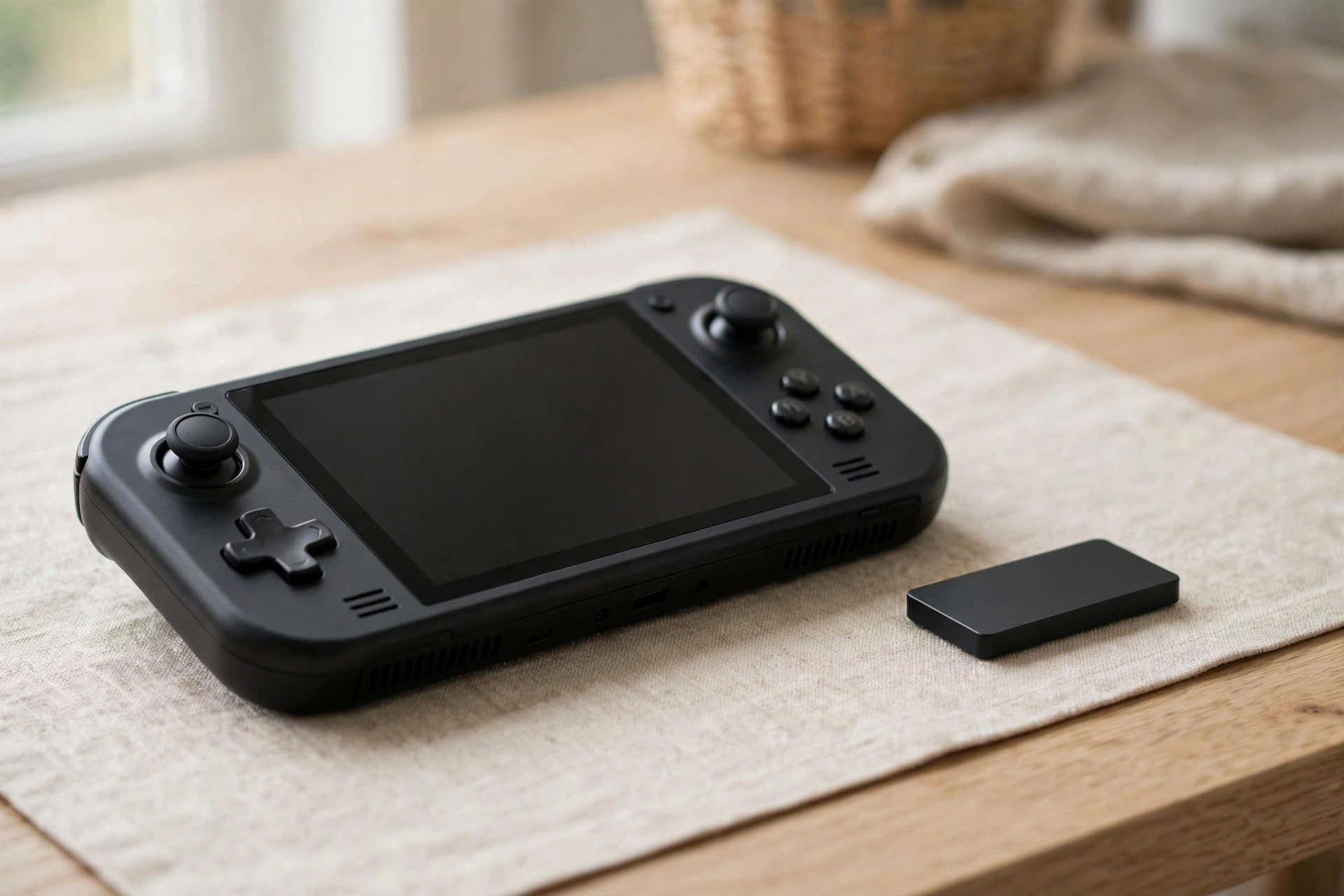
The Steam Deck's stock storage — 64GB eMMC on the base model, or 512GB on higher tiers — runs out fast when single games weigh 80GB or more. Valve made the internal SSD user-replaceable, and a 1TB or 2TB 2230-size NVMe upgrade is the most transformative mod you can make: your whole library travels with you and the dreaded "storage full" dialog disappears. This guide covers which drives actually fit, how much capacity to buy, and how to migrate without losing your setup.
Why 2230? The size constraint that rules everything
The Steam Deck (and most handheld PCs) accepts only M.2 2230 drives — 22mm wide, 30mm long, roughly the size of a postage stamp. Standard desktop 2280 SSDs physically do not fit. This single constraint narrows the market dramatically: 2230 was long a niche OEM form factor, and only in the last few years has a healthy retail market emerged.
Additional constraints to respect:
- Single-sided only. Chips on both sides of the PCB won't clear the Deck's thermal shielding. Nearly all retail 2230 drives are single-sided, but verify before buying.
- PCIe Gen3 x4 or Gen4 x4. The Deck's slot is PCIe 3.0 x4 (LCD models) — a Gen4 drive works fine but won't exceed Gen3 speeds. Don't pay extra for flagship Gen4 sequential ratings; the Deck can't use them.
- Power and thermals. The Deck's cooling was designed around modest SSD power draw. High-performance 2230 drives can run hot in the cramped chassis — an efficiency-tuned drive beats a benchmark champion here.
The Deck's storage bus, explained
The original Steam Deck (both LCD and OLED revisions) wires its M.2 slot at PCIe 3.0 x4, which caps real-world throughput around 3,200–3,500 MB/s. That ceiling shapes every buying decision: a Gen4 drive rated at 7,000 MB/s negotiates down to Gen3 speeds and behaves identically to a native Gen3 drive here. Don't pay a premium for Gen4 headline numbers the Deck cannot use.
More importantly, handheld game loading is rarely storage-bound. Once a drive clears roughly 1,500–2,000 MB/s of sequential reads, the bottleneck shifts to the APU: decompressing game assets, compiling shaders, and initializing the engine. This is why upgrading from the stock 512GB NVMe to a faster 2230 yields modest load-time gains — the drive was never the slowest part of the chain. The exception is the 64GB eMMC model, whose ~300–400 MB/s reads genuinely bottleneck everything.
One subtle factor is shader pre-caching: Steam downloads pre-compiled shader caches that can consume tens of gigabytes across a large library. A slow drive makes shader loading sluggish at game launch; any NVMe 2230 handles it comfortably.
Load times: what the upgrade actually buys you
Benchmarks on handhelds are noisy — firmware versions and background downloads all shift results — but the hierarchy is consistent. These are typical observed ranges, not lab-certified figures:
| Scenario | 64GB eMMC (stock) | 512GB stock NVMe | 1–2TB 2230 upgrade | UHS-I microSD |
|---|---|---|---|---|
| Launch a 60GB AAA title | ~50–70 s | ~25–35 s | ~22–30 s | ~45–75 s |
| Fast-travel / level load | ~25–40 s | ~10–15 s | ~8–13 s | ~20–35 s |
| Install a 100GB game | ~35–50 min | ~12–18 min | ~10–15 min | ~45–70 min |
The pattern is clear: eMMC to NVMe is a generational leap, stock NVMe to a bigger 2230 is incremental on speed but transformational on capacity, and microSD is fine for storage but poor for anything you play regularly.
The shortlist: 2230 drives worth buying
| Drive class | Capacity options | Interface | Best for |
|---|---|---|---|
| Mainstream retail 2230 (TLC) | 512GB / 1TB / 2TB | PCIe 4.0 x4 | Most Deck owners — balanced all-rounder |
| Efficiency-tuned 2230 | 1TB / 2TB | PCIe 4.0 x4 | Battery-conscious players, hot climates |
| Budget DRAM-less 2230 | 512GB / 1TB | PCIe 4.0 x4 | Cheapest path to more space |
| OEM pulls (used) | 256GB–1TB | PCIe 3.0/4.0 x4 | Tight budgets — verify health first |
A note on the efficiency-tuned class: these drives use controllers designed for low active and idle power, which matters more in a handheld than on a desktop. If two drives cost the same, take the efficient one — you will never notice the benchmark difference, but you may notice the battery difference.
1TB vs 2TB: the real decision
For most Deck owners, 1TB is the sweet spot: 8–12 major titles alongside the OS, at a price where the upgrade pays for itself in convenience within weeks. Power users with sprawling libraries — or anyone who dual-boots Windows — should stretch to 2TB. The premium is real but reasonable, and re-doing the migration a year later costs more in time than the price difference.
Skip 512GB unless your budget is truly minimal: it's only a modest step up from stock on higher-tier Decks, and you'll be managing storage again within months. Our capacity guide walks through the price-per-gigabyte math that applies here too.
One more consideration: shader caches and compatdata. Every Steam game stores compatibility files and shader caches on the internal drive, and these grow silently — 50–100GB across a big library is normal. Mentally subtract ~150GB from the advertised capacity for the OS, caches, and headroom when sizing your upgrade.
2026 pricing: what 2230 upgrades actually cost
The 2230 market carries a form-factor tax: per gigabyte, 2230 drives cost noticeably more than 2280 equivalents, because the tiny PCB demands denser packaging and the market is smaller. Expect roughly 20–40% more per GB than a comparable desktop drive — a premium that has been shrinking as retail 2230 volumes grow, but isn't going away.
In practice, 1TB retail 2230 drives sit in the impulse-buy range for most enthusiasts, while 2TB commands a genuine premium — often 2.2–2.5x the 1TB price rather than 2x. That nonlinear pricing is why 1TB remains the default recommendation. If your library genuinely needs 2TB (dual-boot Windows, or 20+ AAA titles installed at once), it's still cheaper than constant storage juggling — but don't buy 2TB "just in case."
Watch for two pricing traps. First, used OEM pulls look cheap until you factor in zero warranty and unknown wear. Second, Gen4 flagship 2230 drives priced for 7,000 MB/s ratings the Deck caps at Gen3 speeds. Buy on $/GB, thermals, and warranty — in that order.
Performance reality check
Set expectations correctly: the Deck's PCIe 3.0 x4 slot caps throughput around 3,500 MB/s, and game loading is rarely storage-bound — the APU's decompression and the game engine matter more. Upgrading from the 64GB eMMC model to any NVMe 2230 is a dramatic improvement. Upgrading from the stock 512GB NVMe to a faster 2230 is subtler: modestly snappier loads and, more importantly, freedom from capacity anxiety.
Where drive choice does matter is sustained writes and thermals. Installing a 100GB game is a long sequential write in a poorly ventilated chassis — a cooler, steadier drive beats a hotter, peakier one.
Thermals and power: picking a drive that won't cook
The Steam Deck's chassis is a thermal compromise: one small fan cools the APU, the SSD, and the power circuitry together. In this environment, a drive's power profile matters more than its peak speed — aggressive controllers can push NAND past 70°C during long installs, at which point throttling erases the benchmark advantage while dumping extra heat into the shared cooling loop.
Practical guidance:
- Favor efficiency-tuned controllers. Drives designed for handhelds or low-power laptops are engineered for exactly this thermal envelope, and their sustained performance in a Deck often exceeds throttled flagships.
- Reuse the stock thermal pad/EMI shield. Peel it carefully during the swap and reapply it over the new drive. If it's damaged, a 1mm thermal pad cut to size is an acceptable substitute.
- Check SMART temperatures after installing. Sustained temperatures in the 60s (°C) during a long download are fine; regularly pushing past 75°C suggests the drive is fighting the chassis.
Cloning vs fresh install
You have two migration paths:
- Clone: copy your existing drive bit-for-bit to the new SSD using a USB NVMe enclosure and cloning software, then swap. You keep every game, setting, and save exactly as they were. Our step-by-step cloning guide covers the process — you'll need a 2230-compatible USB enclosure or adapter, since most enclosures are built for 2280.
- Fresh install: use Valve's official recovery image on a USB stick. Cleaner, eliminates accumulated cruft, but means redownloading your library. Best if you're also switching SteamOS versions or your install is misbehaving.
Cloning is the popular choice for a reason: with a big library and slow internet, redownloading everything can take days. Either way, back up your saves to Steam Cloud (or manually) before you start.
A cloning detail that trips people up: partition expansion. When you clone a 512GB drive onto a 2TB drive, the partitions initially keep their old sizes — you must expand the home partition to use the new space. Most cloning tools offer an "expand to fill" option; if yours doesn't, a GParted live USB handles it in minutes.
Step-by-step: swapping the Steam Deck SSD
What you need: a PH1 screwdriver, plastic pry tools, and a small tray for screws. A magnetic tray earns its keep — the screws are tiny. You'll also want your cloned SSD ready, or a USB stick with Valve's recovery image.
- Power off fully — not sleep, full shutdown. Remove the microSD card (it protrudes and will snap) and any USB devices.
- Remove the back plate. Eight PH1 screws of different lengths — keep them organized by position. Start prying at the top edge and work around; the clips release with steady, gentle pressure.
- Disconnect the battery. The connector pulls straight up; disconnecting it eliminates short-circuit risk while you work near the board.
- Peel back the SSD's EMI shield. Lift it slowly from one corner — you'll reuse it, so don't crease or tear it.
- Swap the drive. Remove the single tiny retaining screw (this is the one people lose), slide the old SSD out at its angle, slide the new one in the same way, and replace the screw. Snug, not forced.
- Reapply the shield, reconnect the battery, close up. Reverse the disassembly order. Double-check the battery connector is fully seated before replacing the back plate.
- First boot and verification. Boot from your cloned drive, or hold Volume-Down + Power to boot the recovery USB. Then check Settings > Storage: confirm the new capacity is visible.
Cautions worth repeating: never force a connector; if the back plate won't close, something is misaligned. If the Deck doesn't boot, reopen and reseat the drive — a slightly unseated M.2 connection is the most common post-swap failure and takes thirty seconds to fix.
microSD vs internal SSD: do you even need the upgrade?
A fair question, since a 1TB microSD card is cheaper and requires no screwdriver. The honest answer depends on your patience. Modern UHS-I microSD cards read at ~100–160 MB/s — fine for indie titles and older games, but AAA games with heavy streaming can stutter, and installs take several times longer. The popular hybrid strategy: internal NVMe for your current rotation of demanding games, microSD for the backlog. If you go this route, buy cards from reputable brands — counterfeit high-capacity cards are rampant. But if you can only do one upgrade, the internal SSD improves everything while microSD only adds slow space.
One more microSD reality: write endurance on cheap cards. Game installs hammer a card with sustained writes, and bargain-bin cards can degrade or corrupt under that abuse. If you run games from microSD, buy an A2-rated card from a brand with a real warranty, and keep saves synced to Steam Cloud regardless.
Upgrade paths compared
| Path | Typical cost (1TB) | Speed | Effort | Best for |
|---|---|---|---|---|
| Internal 2230 NVMe | Higher ($/GB premium) | Up to ~3,500 MB/s | 20-min screwdriver job | Primary upgrade — speed + capacity |
| microSD UHS-I | Cheapest | ~100–160 MB/s | None — slots in | Backlog storage, indie games |
| External USB SSD | Mid-range | ~400–1,000 MB/s | Plug in, format | Docked play, media, backups |
These paths stack: a 1–2TB internal 2230 for the active rotation plus a large microSD for the backlog covers nearly every scenario. Each tier is an order of magnitude slower than the last, so put games where their loading demands belong.
Common mistakes to avoid
Mistake 1: buying a 2280 drive. The most common handheld-upgrade error. The Deck's slot is 2230 with a fixed standoff — a 2280 drive cannot be secured and the back plate won't close. Check for "2230" in the product title, not just "M.2 NVMe."
Mistake 2: buying a double-sided 2230. Rare, but some high-capacity 2230 drives put NAND on both sides of the PCB and won't clear the Deck's shielding. Confirm "single-sided" before ordering.
Mistake 3: paying for Gen4 speeds. The Deck negotiates every drive down to PCIe 3.0 x4. A 7,000 MB/s flagship performs identically to a 3,500 MB/s mainstream drive here — buy on price, thermals, and warranty instead.
Mistake 4: forgetting the microSD card. It protrudes from the slot and snaps easily when the back plate comes off. Remove it before you start, every time.
Mistake 5: skipping the battery disconnect. Working on a live board risks shorts that can kill the Deck. The connector takes five seconds to pull.
Mistake 6: cloning without expanding partitions. Your new 2TB drive will show up as 512GB until you expand the home partition. Check Settings > Storage before assuming the clone failed.
Mistake 7: trusting a used OEM pull blindly. Check SMART data — power-on hours, percentage used — before migrating your library onto it. A drive at 80% of its rated endurance is not a bargain at any price.
Beyond the Deck: other handhelds
The 2230 market also serves the ROG Ally, Legion Go, and MSI Claw — though some of these use the 2280 form factor instead (the Ally X and Legion Go, for example), which opens up the full desktop drive market. Check your specific model's manual before ordering: buying the wrong length is the most common handheld-upgrade mistake. Our portable SSD guide covers external options too, for games that don't need internal speeds.
The calculus differs by device. Handhelds with 2280 slots (Legion Go, Ally X) can use any mainstream desktop NVMe — including Gen4 drives at full speed. That makes the upgrade cheaper per gigabyte. Handhelds with 2230 slots (Deck, original Ally, Claw) face the same constraints covered in this guide: single-sided, efficiency over peak speed, and the form-factor tax.
Who it's for / who should skip it
Upgrade the internal SSD if: you own the 64GB model (this is nearly mandatory), you juggle more than a few large games, or you dual-boot Windows. The quality-of-life improvement is enormous.
Stick with microSD if: you mainly play indies and older titles, you're uncomfortable opening hardware, or your Deck is still under warranty and you'd rather not risk it — Valve's stance is repair-friendly, but accidents happen.
Consider both if: you're a heavy user with a big library. A 1TB internal drive for the active rotation plus a 1TB microSD for the backlog costs less than a 2TB internal upgrade — the only trade-off is managing two storage locations in SteamOS.
FAQ
Will a 2280 SSD fit in a Steam Deck?
No. The Deck's M.2 slot is physically 2230-length with a fixed standoff. A 2280 drive cannot be secured and the back plate won't close. You must buy a 2230 drive.
Does a faster SSD improve game frame rates?
No — frame rates are determined by the APU/GPU. A faster SSD reduces loading times and can smooth asset streaming in open-world games, but it won't raise your FPS.
Can I use a Gen4 2230 drive in the original Steam Deck?
Yes. It's backward compatible with the Deck's PCIe 3.0 x4 slot and will simply run at Gen3 speeds. Buy on price and thermals, not on Gen4 headline numbers you can't use.
Is opening the Steam Deck risky?
It's one of the more repair-friendly handhelds, and Valve publishes guidance. The main risks are stripping tiny screws, forgetting to disconnect the battery, or damaging the EMI shield. Take your time, follow a teardown video, and it's a 20-minute job.
Should I buy a used OEM 2230 drive to save money?
It can work, but check the drive's health (power-on hours, TBW consumed) with a SMART tool before trusting it. Used OEM drives have no warranty, and a failing drive in a handheld is a miserable experience. For most buyers, a new retail 2230 with a warranty is worth the premium.
How long does the SSD swap actually take?
About 20 minutes for the hardware swap, 30–45 minutes the first time. The software side takes longer: cloning a full 512GB drive over USB runs 30–60 minutes, and a fresh install plus redownloading a library can take hours. Budget an evening, not a lunch break.
Will upgrading the SSD void my warranty?
Valve's stance is notably repair-friendly: opening the Deck and replacing the SSD does not void the warranty in itself. But damage you cause during the repair isn't covered — strip a screw boss or short the board with the battery connected, and that repair is on you.
Can I reuse the old SSD afterward?
Yes. The removed drive works fine in a 2230 USB enclosure as a fast portable SSD — handy for Steam backups. Just make sure the enclosure supports 2230 length (many are 2280-only). Wipe it first if it contains your old SteamOS install, to avoid confusion when it's plugged into the Deck later.
Does the OLED Steam Deck use the same drive?
Yes — the OLED revision keeps the same M.2 2230 slot at PCIe 3.0 x4, with the same single-sided and thermal constraints. Every recommendation in this guide applies equally to LCD and OLED models; just follow a teardown video for your specific revision, since screw positions differ slightly.
2230 vs 2242 — will a 2242 drive fit?
No. 2242 drives are 12mm longer than the slot allows, and the standoff is fixed at the 2230 position. Some sellers list 2242 drives as "handheld compatible" — they aren't, for the Deck. Only 2230 fits.