NVMe vs SATA SSD in 2026: Still Worth Upgrading?
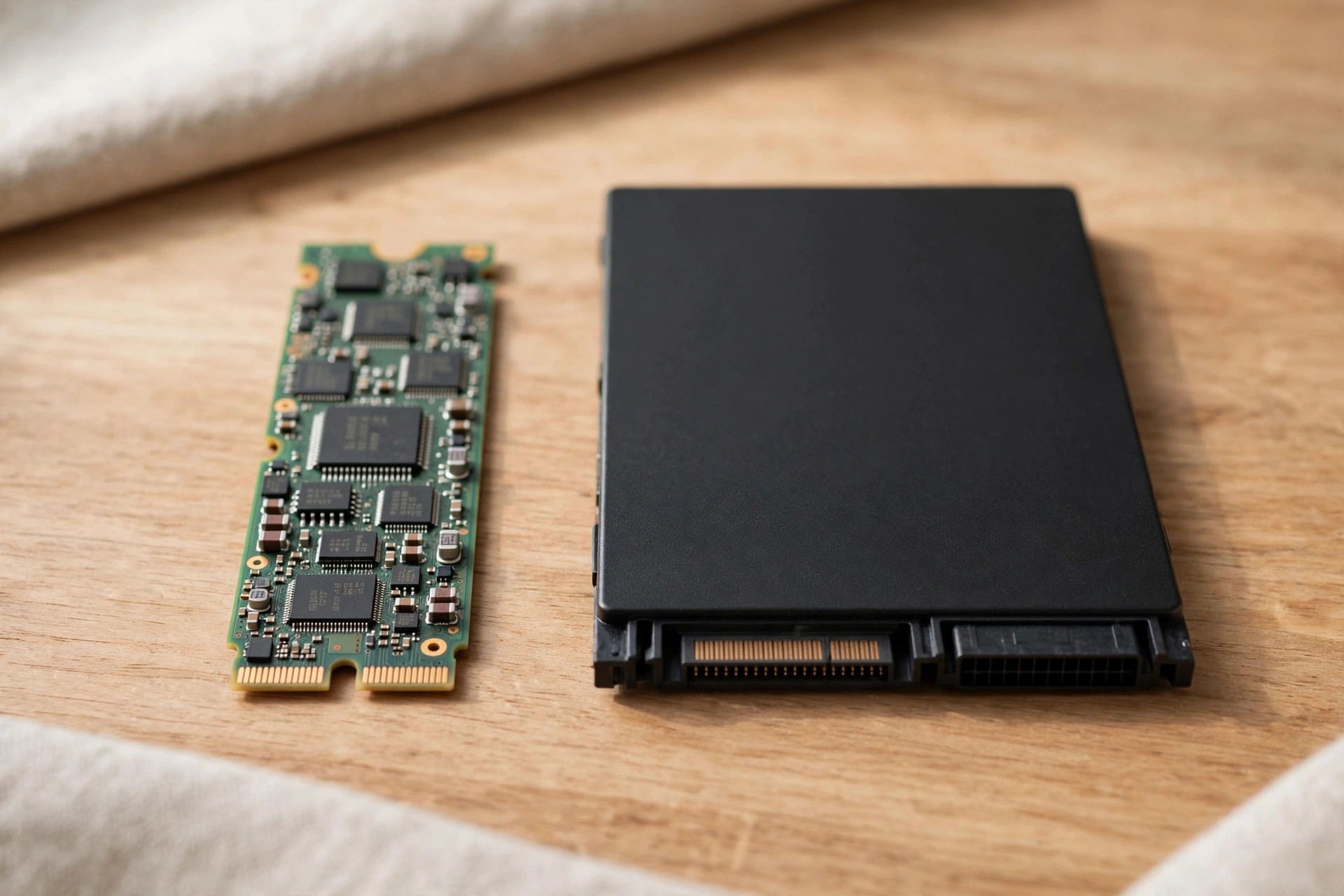
The SATA SSD was the upgrade that converted millions of PC users a decade ago — the jump from a spinning hard drive to any SSD remains the single biggest responsiveness upgrade in computing history. But in 2026, with NVMe drives at historic price parity and PCIe 5.0 grabbing headlines, the humble 2.5-inch SATA SSD looks like a relic. Is it? The answer depends on what you're upgrading from and what your machine supports. Here's the honest breakdown.
NVMe vs SATA: what actually differs
Both are SSDs — no moving parts, silent, shock-resistant. The difference is the road they use to talk to your PC:
- SATA SSDs use the SATA III interface: 6 Gb/s theoretical, ~550 MB/s real-world sequential, and the AHCI protocol designed in the hard-drive era. They come in 2.5-inch enclosures (or M.2 SATA sticks) and work in virtually any PC built since 2010.
- NVMe SSDs ride the PCIe bus directly with a protocol designed for flash: a Gen3 drive hits ~3,500 MB/s, Gen4 ~7,000 MB/s, Gen5 ~14,000 MB/s. They need an M.2 slot (or adapter) and a compatible platform.
Sequential numbers suggest NVMe is 6–25x faster. Real-world feel is far less dramatic — because the workloads where you feel storage speed are dominated by random access and latency, where the gap is narrower.
AHCI vs NVMe: the protocol story
The interface gets the glory, but the protocol does the work. AHCI was designed in 2004 for spinning disks: a single command queue, 32 commands deep, with interrupt-driven overhead on every operation. It was brilliant for hard drives and a straitjacket for flash — like routing a motorway through a village high street.
NVMe was designed for flash from scratch: up to 64,000 queues, each 64,000 commands deep, with far lower per-command CPU overhead and no legacy translation layers. No consumer workload fills those queues — but the lower overhead shows up as composure under multitasking. The drive that stays responsive while antivirus scans, cloud sync churns, and you compile code is winning on protocol, not just bandwidth.
This is also why SATA SSDs feel "fast enough" for light use: a single user doing one thing at a time rarely saturates AHCI's queue depth. The moment workloads pile up — background updates, sync clients, a game patching while you work — NVMe's parallelism pulls ahead. The interface sets the ceiling; the protocol decides how gracefully you approach it.
Head-to-head: benchmarks vs feel
| Task | SATA SSD (~550 MB/s) | Gen4 NVMe (~7,000 MB/s) | Feels different? |
|---|---|---|---|
| Windows boot | ~18 s | ~12 s | Slightly |
| App / game launch | fast | fast | Barely |
| Game level load | ~11 s | ~8.5 s | Modestly |
| 50GB file copy | ~95 s | ~20 s | Yes — dramatically |
| 4K video editing scrub | struggles | smooth | Yes |
| Price per GB (2TB, 2026) | often higher than NVMe | cheapest per GB | — |
The table tells the whole story: for booting, browsing, and launching apps, SATA-to-NVMe is a subtle refinement. For moving big files and creative work, it's transformative. And note the pricing irony — NVMe is now frequently cheaper per gigabyte than SATA, because SATA production volumes have shrunk while NVMe fabs run at scale.
More benchmarks: the tasks reviewers skip
Standard reviews benchmark boots and game loads. Daily computing has more texture than that:
| Task | SATA SSD | Gen4 NVMe | Noticeable? |
|---|---|---|---|
| Extracting a 20GB archive | ~3 min | ~50 s | Yes |
| Full antivirus scan (500GB) | ~25 min | ~12 min | Yes |
| Applying a 30GB game patch | ~6 min | ~2.5 min | Yes |
| Photo import + preview build (1,000 raws) | Slow | ~2x faster | Yes |
| 20 browser tabs + music + compile | Occasional hitches | Smooth | Modestly |
| Typing in a document | Identical | Identical | No — and that's fine |
The pattern: single light tasks feel the same on either interface; everything involving bulk data or background contention favors NVMe. If your computing is genuinely one thing at a time, SATA's dignity is intact. If your machine is always doing three things at once — and in 2026, with sync clients and updaters everywhere, it is — NVMe's parallelism earns its keep daily.
2026 pricing: the numbers
The price story has flipped completely. Two years ago SATA commanded a small premium for simplicity; in 2026, quality 2TB Gen4 NVMe drives routinely undercut 2TB SATA on price per gigabyte, because NAND fabs and controller volumes have all moved to NVMe while SATA became a low-volume legacy line. At 4TB the gap widens further — high-capacity SATA is now a specialty product with specialty pricing.
Translation: there is no longer a "SATA is cheaper" argument — only "SATA is what my machine accepts." Buy NVMe whenever the slot exists; buy SATA only when it's the only door in. One caution about the remaining SATA market: shrinking volumes attract relabeled junk. Stick to established manufacturers with real warranties, and be suspicious of no-name SATA drives priced far below the market — the savings come from somewhere, usually the NAND.
Who still buys SATA in 2026?
Reports of SATA's death are exaggerated — the buyers just changed. Industrial PCs, point-of-sale terminals, digital signage, and network appliances overwhelmingly still ship with SATA, because their workloads never exceed 550 MB/s and platform stability matters more than benchmark numbers. The same goes for office fleet upgrades: IT departments refreshing hundreds of 2015-era desktops buy 2.5-inch SATA by the pallet, because it's a 10-minute swap with zero compatibility risk. And there's a quiet enthusiast niche too — silent-PC builders who value SATA's lower heat output, and NAS owners using SATA SSDs as quiet, cool cache drives. SATA isn't the future, but it's a large, stable present.
When SATA is still perfectly fine
Don't let interface snobbery spend your money. SATA SSDs remain a rational choice when:
- Your machine has no M.2 slot. Millions of perfectly good desktops and laptops from the 2012–2017 era take 2.5-inch drives only. A SATA SSD transforms these machines; there's no NVMe option without exotic adapters.
- It's a secondary/bulk drive. For a media library, document archive, or game cold storage, SATA's 550 MB/s is ample — games load a couple of seconds slower, and you may never notice.
- You're upgrading from a hard drive. HDD → SATA SSD is a 10–20x responsiveness leap. HDD → NVMe is bigger on paper, but the felt difference between SATA and NVMe SSDs is a fraction of the HDD-to-SSD leap.
- Old OS or driver constraints. Some legacy systems and specialized equipment only speak SATA/AHCI reliably.
When NVMe is the clear answer
- New builds and recent laptops: if the M.2 slot exists, use it. NVMe costs the same or less per GB and is faster at everything.
- Content creation: video editing, large photo libraries, and software compilation benefit enormously from NVMe's random performance and sustained throughput.
- OS/boot drive: your primary drive should be the fastest interface your board supports — it's the one drive where every operation counts.
- DirectStorage gaming: Microsoft's GPU-decompression API requires NVMe. A handful of titles support it today; more are coming.
If you're weighing generations within NVMe, our PCIe Gen5 analysis and capacity guide will help you spend wisely rather than maximally.
The upgrade decision tree
Still on a hard drive? Upgrade immediately — to NVMe if your board has an M.2 slot, otherwise SATA. Either way, do it this week; it's the best dollars-per-delight upgrade in PCs. Our cloning guide shows how to migrate without reinstalling.
On a SATA SSD, wondering about NVMe? Ask what bothers you. If the machine feels slow at booting and launching, the CPU or RAM is more likely the culprit — an NVMe swap won't fix that. If you're regularly waiting on file copies, video work, or game installs, NVMe is a meaningful upgrade. For everyone else, the money is better spent on capacity: a bigger SATA SSD often improves life more than a faster NVMe one of the same size.
Building new? NVMe, always. There's no price argument left for SATA in a fresh build with M.2 slots.
Not sure what your board supports? Check the manufacturer's spec page for your exact motherboard or laptop model and look for "M.2" in the storage section — it will state the supported lengths (2242/2260/2280), the PCIe generation, and whether SATA-mode M.2 is also accepted. When in doubt, CPU-Z or HWiNFO will report the chipset and existing drive interface from inside Windows, no screwdriver required.
Laptop upgrades, step by step
The 2.5-inch SATA swap is the friendliest storage upgrade in PCs — no M.2 keying anxiety, no heatsinks, no lane diagrams:
- Confirm the bay. Check whether your laptop takes 7mm or 9.5mm thick drives — nearly all modern SSDs are 7mm and fit both, but verify before ordering. A spacer bracket sometimes ships in the box for 9.5mm bays.
- Clone or clean-install. Clone the existing drive to the new SATA SSD using a USB-to-SATA adapter, or do a clean OS install from a USB stick for the freshest result. Cloning preserves everything; clean-installing clears years of cruft.
- Swap the drive. Power off fully, remove the battery if it's removable, unscrew the drive-bay cover, and transfer the caddy or bracket screws to the new SSD. It only fits one way — don't force it.
- Boot and verify. Confirm the BIOS sees the new drive, boot up, and keep the old drive untouched for a week as a fallback.
Bonus move: if your laptop also has an M.2 slot (many 2016+ models do), consider NVMe for the OS and repurpose the 2.5-inch bay for bulk SATA storage — the best of both interfaces in one machine.
M.2 SATA: the trap to avoid
One caution: M.2 is a connector, not a protocol. M.2 SATA drives exist — same stick shape as NVMe, one-tenth the speed. They're for upgrading old laptops whose M.2 slot only wires SATA. If your slot supports NVMe, buying an M.2 SATA drive in 2026 is paying NVMe-adjacent money for SATA performance. Check your motherboard or laptop manual: the spec will say "M.2 PCIe/NVMe" (good) or "M.2 SATA" (constrained).
Mistakes to avoid
- Buying an M.2 SATA drive for an NVMe-capable slot. The shape fits; the speed doesn't. Read "PCIe/NVMe" on the spec sheet, not just "M.2."
- Leaving the BIOS in IDE mode. Ancient systems sometimes default to IDE emulation instead of AHCI; without AHCI you lose TRIM and native command queuing. Change it before installing the OS — switching afterward can blue-screen without a registry tweak.
- Putting the OS on a DRAM-less QLC drive to save a few dollars. The boot drive does the most random writes in the system; this is exactly where NAND quality and a DRAM cache matter most.
- Cloning a failing hard drive sector-by-sector. A dying drive's bad sectors and filesystem corruption clone right into the new install. Clean-install the OS and copy data manually instead.
- Ignoring firmware updates. SSD manufacturers ship meaningful reliability and performance fixes. Check for a firmware update right after installation — it takes two minutes.
- Forgetting to enable TRIM. Modern operating systems handle it automatically, but verify it's active after a clone or clean install, especially on older Windows builds — without TRIM, write performance degrades over months.
Endurance and reliability: TBW, SMART, and real lifespan
SSDs wear with writes, and the honest metric is TBW — terabytes written — printed in the warranty's fine print. A 600 TBW drive tolerates roughly 330GB of writes every day for five years; typical desktop use is 10–30GB a day, so a quality drive effectively doesn't wear out in consumer service. Check the SMART "percentage used" or "media wearout" attribute once a year; anything under 20% after years of use means you can stop worrying entirely.
Two habits extend any drive's life: keep 10–15% free space so wear-leveling and the SLC cache have room to work, and don't defragment SSDs — it's pointless wear that buys zero speed. And remember the interface lesson from the FAQ below: a quality SATA TLC drive outlives a bargain NVMe QLC drive under identical workloads. NAND quality beats interface generation for longevity, every time.
External SSDs: the third option
Worth a brief mention: USB external SSDs have quietly become a legitimate middle path. A 1TB USB 3.2 Gen 2 portable SSD sustains ~1,000 MB/s — double SATA, with zero installation — and USB4 models reach 3,000+ MB/s, rivaling internal Gen3 NVMe. For laptop owners with no upgradeable internal slot, or anyone wanting portable bulk storage, external is often the better answer than agonizing over SATA vs NVMe internals. The trade-offs are a cable on your desk, slightly higher cost per gigabyte, and (on some systems) the OS refusing to install certain apps to removable drives. As a complement to a small internal SSD, though, a fast external drive resolves the capacity crunch without a screwdriver.
Who it's for / who should skip it
Upgrade to NVMe if: you're building or buying new, you do creative work with large files, or your SATA SSD is full and you're buying anyway — the price is the same, so take the speed.
Stay on SATA if: your machine lacks M.2 slots, the drive is bulk secondary storage, or your actual bottleneck is CPU/RAM. A SATA SSD from a reputable maker remains a fast, reliable drive — the interface is old, not broken.
Skip the upgrade entirely if: you're on a decent SATA SSD and just wondering whether NVMe will make Windows "feel" faster. It won't, perceptibly. Spend the money on RAM or a clean OS install instead.
FAQ
Is NVMe really 10x faster than SATA?
In sequential benchmarks, yes — 7,000 vs 550 MB/s. In everyday feel, no — booting and app launching improve by 20–40%, because those tasks depend on random access and latency where the gap is much smaller. Large file operations are where the 10x shows up.
Can I replace my 2.5-inch SATA SSD with NVMe?
Only if your motherboard or laptop has an M.2 slot with NVMe support. The 2.5-inch bay and M.2 slot are physically different — check your manual. Many desktops have both, making it easy to keep the SATA drive as secondary storage.
Are SATA SSDs being discontinued?
Not imminently, but the market is shrinking: fewer new models launch each year, and production focus has shifted to NVMe. Prices have stopped falling and in some capacities SATA now costs more per GB than NVMe. Buy what you need, but don't stockpile.
Will a SATA SSD bottleneck my games?
For most current games, no meaningful bottleneck — load times run a few seconds longer than NVMe. The exception is DirectStorage-enabled titles, which require NVMe and stream assets in ways SATA can't match. That list is still short in 2026.
Which lasts longer: SATA or NVMe SSD?
The interface doesn't determine lifespan — NAND type, controller quality, and workload do. A quality SATA TLC drive will outlast a cheap NVMe QLC drive under heavy writes. Compare TBW ratings and warranties, not interfaces.
Can I clone my SATA SSD directly to an NVMe drive?
Yes — cloning tools don't care about the interface, only the partitions. Clone as usual, then confirm the system boots in UEFI mode with the NVMe drive first in the boot order. One detail: check partition alignment afterward (most modern tools align automatically), since misaligned partitions cost a small but real performance penalty on NVMe.
Is it worth putting an SSD in a 10-year-old laptop?
Often yes, with realistic expectations. If the CPU and RAM are adequate for your actual use — web, office, media — a SATA SSD makes the machine feel modern again for the cheapest money in computing. Don't spend more than the machine is worth, and don't expect it to game or edit video; you're buying usability, not a new computer.
Do I need to change BIOS settings for NVMe?
Usually it's plug-and-play: modern boards detect NVMe drives automatically. Ensure the system boots in UEFI mode (not legacy CSM) and that the M.2 slot is enabled in the BIOS — some boards disable specific SATA ports or slots when an M.2 drive is populated, which is documented in the manual's fine print. If the drive isn't detected, disabling CSM is the first thing to try.
Should I keep my old SATA SSD after upgrading to NVMe?
Absolutely — it's the perfect secondary drive. Repurpose it for your media library, document archive, game cold storage, or a dedicated backup volume. A quality SATA SSD as bulk storage alongside an NVMe boot drive is one of the best price-to-utility layouts in 2026: fast where it counts, spacious where it matters.
Do SATA SSDs need heatsinks?
No. SATA SSDs top out around 550 MB/s and their controllers sip power — they run cool enough that the 2.5-inch metal enclosure is all the heatsinking they'll ever need. If a SATA SSD feels hot, something else is wrong (usually blocked case airflow). Save the heatsink budget for NVMe, where thermals genuinely affect performance.